The Privileged Roles Nobody Talks About

Table of contents
Part 1: Why Your MDM Platform is a Tier 0 Asset
This is Part 1 of a two-part series on Intune security hardening. This post covers what we have seen in real world attacks as well as attack paths our Pentest Team has leveraged, why platform administration roles are systematically underprotected, and what controls you need in place. Part 2 covers the step-by-step implementation: configuration walkthroughs, decision flowcharts, and validation testing for each control.
If you work in Incident Response long enough, you stop being surprised by the how of attacks and start paying more attention to the why these types of attacks are possible in the first place. When we perform leverage this attack path it makes every security team stop and rethink assumptions about what "privileged access" actually means in their environment. On-prem, we have seen the same, often with System Center Configuration Manager (SCCM) and other platforms, but now we see that with solutions with wipe capability they pose an even greater lower bar to cause malicious impact.
Let me break down what attackers have leveraged, why it matters beyond the headlines, and what the real operational takeaway is, especially if your organization relies on Microsoft Intune.
What Happens
The attack vector we have started to see is a legitimate feature of the management platform, executed from a compromised privileged account. Intune in this case does exactly what it was designed to do. The failure we see often is in who had the keys and how those keys were protected.
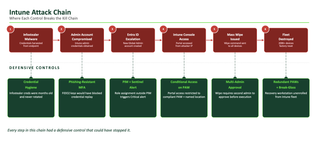
The Real Lesson: Platform Admins are God-Tier Roles
This is where I want to focus, because this is the conversation the industry keeps avoiding.
When we talk about high-privilege roles in an environment, the usual suspects come up immediately: Domain Admins, Enterprise Admins, Tenant Global Admins, maybe your virtualization platform admins (vCenter, Hyper-V). These are the roles that make it into risk assessments, into tiered access models, into the conversations about Privileged Access Workstations and just-in-time elevation. We recommend this often to customers who have been victims of these types of attacks. To my surprise, there is always a level of pushback even after this has been abused and machines have been encrypted.
But here is what too many organizations miss: The people who administer your Mobile Device Management (MDM) platform, your configuration management tools, and your application deployment systems hold power over your infrastructure that is functionally equivalent to a Domain Admin. In many cases, it exceeds it.
Think about what an Intune administrator can do:
- Deploy arbitrary PowerShell scripts to every enrolled Windows device, executed as SYSTEM at startup
- Push configuration profiles that modify security baselines, firewall rules, credential policies
- Issue remote wipe commands (full device factory resets) across the entire fleet
- Deploy and remove applications silently, including security tooling
- Modify compliance policies that determine whether a device can access corporate resources
- Manage certificates and authentication configurations across all enrolled endpoints
This is not a support role. This is infrastructure-level control. And yet, in how many organizations are the Intune admin accounts treated with the same rigor as the Domain Admin accounts? How many organizations have their Intune administrators operating from the same workstation they use to check email and browse the web?
I already know the answer to that, because I see it in engagements all the time.
The Pattern That Keeps Repeating
The underlying problem for these attacks is not new. It is the same pattern I have seen across dozens of environments in Incident Response and advisory work:
No account separation. The person managing Intune is doing so with the same account they use for daily productivity, email, Teams, SharePoint. Sometimes, it is the same account that has a mailbox, receives phishing emails, and clicks links. The administrative identity and the user identity are one and the same.
No dedicated administrative workstation. Privileged operations against Intune are performed from a standard corporate laptop, the same machine that has a browser with 40 open tabs, personal bookmarks, and browser extensions of questionable provenance. There is no Privileged Access Workstation (PAW), no jump box, no hardened environment dedicated to administrative functions.
No just-in-time privilege elevation. The Intune admin role is permanently assigned. It is not activated through Privileged Identity Management (PIM) on a time-boxed basis when administrative work needs to happen. The account is privileged 24/7, which means a compromised session token is privileged 24/7.
No Multi-Admin Approval for destructive actions. Intune supports a feature called Multi-Admin Approval that requires a second administrator to sign off before high-impact actions (like remote wipes) are executed. In most environments I assess, this is not enabled. A single compromised account can execute destructive operations against the entire device fleet without any additional gate.
Not included in the risk model. This is probably the most frustrating one. During risk assessments and tabletop exercises, I will ask about privileged roles, and the conversation gravitates toward Active Directory (AD) and Azure AD. When I ask about the MDM administrator, SCCM administrator, or the person who manages the application deployment pipeline, I get blank stares. These roles are simply not part of the threat model. They are treated as operational IT functions, not as security-critical privileged access.
Over-permissioned Graph API app registrations. This one is a silent killer. App registrations in Entra ID that hold DeviceManagementConfiguration.ReadWrite.All or similar DeviceManagement*.ReadWrite.All Microsoft Graph permissions are effectively full Intune control planes. They can create scripts, push policies, and modify device configurations programmatically, all without a human ever logging into the Intune portal. These registrations frequently fly under the radar because they were created for automation, reporting, or a proof-of-concept that never got cleaned up. An attacker who compromises the client secret or certificate for one of these app registrations has persistent, scalable access to every managed device in the tenant, and most organizations have no monitoring on Graph API-initiated Intune changes.
What Remediation Looks Like After the Damage is Done
This is not just something I observe during assessments. My colleagues, Paul Sems and Sean Metcalf on the TrustedSec Remediation team live this reality every time they support our Incident Response Team in helping customers recover from an active compromise. When we hand off from containment to remediation, one of the first and most consistent recommendations Paul and Sean push is the separation of administrative planes of control.
What does that look like in practice? It means virtualization hosts (ESXi, Hyper-V) should not be domain-joined, because if AD falls, the attacker should not automatically inherit control of every virtual machine (VM) in the environment. It means administrative workstations need to be dedicated PAWs that are purpose-built for privileged operations, not general-purpose laptops that also handle email and web browsing. It means jump servers for administrative access should sit in a separate network segment, isolated from the standard corporate network, so that lateral movement from a compromised user workstation does not grant direct access to the management plane.
Paul and Sean advise on this constantly because they see what happens when these boundaries do not exist. The attacker compromises one account, pivots into the management layer, and suddenly has control over the entire infrastructure, every VM, every endpoint, every policy. The plane of control is often not separated, the admin account is not protected with the rigor it deserved, and a single point of compromise turned into an organization-wide wipe, this is something I have seen played out in many Pentest and Red Team engagements where the access is achieved but not executed for obvious reasons, sadly in many Incident Response investigations victims are not so lucky.
The point Paul and Sean keep driving home to customers is that these are not aspirational recommendations. They are the minimum architectural requirements for surviving a modern attack. If your administrative plane is not segmented, if your privileged accounts are not separated, if your management platforms are not treated as Tier 0 assets, you are building on a foundation that will not hold when an attacker tests it.
It’s Not Just Intune
I want to be clear; this is not an Intune problem. This is a platform administration problem. The same risk profile applies to:
- SCCM/MECM, can deploy scripts, applications, and operating system images to every managed endpoint
- Jamf Pro, full control over macOS and iOS device fleets, including remote wipe, policy enforcement, and script execution
- VMware Workspace ONE, unified endpoint management with the same destructive capability
- Google Workspace MDM/Chrome Enterprise, device policy and wipe capabilities across the Google ecosystem
- Virtualization platform admins (vCenter, Proxmox, Hyper-V), can snapshot, clone, destroy, or modify any VM in the environment
- CI/CD pipeline admins, can push code to production, modify build artifacts, and alter deployment configurations
- Backup infrastructure admins, can delete or encrypt backup repositories, which is exactly what ransomware operators target
Each of these roles should be identified, inventoried, and subjected to the same controls we apply to Domain Admins and Global Admins. The tradecraft for protecting them is the same: account separation, dedicated administrative workstations, just-in-time elevation, monitoring, and multi-person approval for destructive operations.
What You Should Be Doing for Intune, Right Now
Let me get practical, because that is the part that matters. If your organization uses Intune, here is what I would be looking at operationally:
1. Treat Intune Admin Roles as Tier 0
Stop treating MDM administration as a standard IT function. The Intune Administrator role in Entra ID, along with custom RBAC roles that carry DeviceManagementConfiguration.ReadWrite.All permissions, should be classified at the same tier as your Global Administrator and Domain Admin roles. Mandiant documented this exact attack path (compromising Intune management scripts to achieve Global Admin access) in their research on abusing Intune permissions in Entra ID native environments.
2. Enforce Phishing-Resistant MFA
Standard MFA is not sufficient. Adversary-in-the-middle (AitM) phishing proxies can intercept session tokens after MFA has been satisfied. Your Intune administrators need phishing-resistant authentication, FIDO2 security keys or certificate-based authentication. Microsoft provides built-in authentication strength policies in Conditional Access that let you enforce phishing-resistant MFA specifically for administrator roles. This is not optional anymore.
3. Enable Multi-Admin Approval
Intune supports Access Policies that require a second administrator to approve changes before they take effect. This is the single most relevant control for preventing a this type of attack, and it deserves specific attention.
Multi-Admin Approval in Intune explicitly supports Device Actions as a protected resource type. That means you can create an access policy that requires a second admin to approve wipe, retire, and delete operations before they execute. When this policy is active, no single administrator can issue a wipe command on their own. They submit the request with a business justification, and a member of the designated approver group must review and approve it before Intune processes the action. If most victim environments had this in place, the compromised admin account could have submitted the wipe request, but it would have sat in a queue waiting for a second human to approve it, giving the organization time to detect and respond.
The coverage extends beyond device actions. You can also protect apps, compliance policies, configuration policies, and Role-Based Access Control (RBAC) role changes under Multi-Admin Approval. In the attack seem, the adversaries modified role assignments after the initial compromise. With RBAC changes gated behind dual authorization, that lateral escalation path gets significantly harder due to the added protection of the extra authorization step.
To configure this: go to Tenant Administration > Multi Admin Approval > Access Policies, create a policy for the "Device actions" resource type, and assign an approver group. Make sure the approver group members have the Approval for Multi Admin Approval permission in their Intune role, and that the group is also a member of at least one Intune role assignment. Test it by issuing a wipe against a test device and verifying the approval workflow fires correctly.
4. Implement Just-in-Time and Just-Enough Administration
No Intune administrator should have a permanently active privileged role. The JIT side of this is Privileged Identity Management (PIM). Roles are activated on-demand with a time-bound window and an approval gate. Microsoft's own PIM deployment guide recommends starting with the highest-impact roles, and the Intune Administrator role should be on that list. When the admin is not actively performing administrative work, the role should not be active.
But JIT alone is not enough. You also need Just-Enough Administration (JEA), which is the principle that an administrator should only have the permissions required for their specific job function. In the Intune context, this maps directly to custom RBAC roles and scope tags.
Microsoft's own documentation is clear on this: the Intune Administrator role in Entra ID grants global read/write permissions across all of Intune and should not be used for day-to-day administration. Instead, you should be creating custom roles with granular permissions scoped to what each admin actually needs. Intune's RBAC model lets you control permissions at the level of individual management categories (device configuration, managed apps, compliance policies, remote actions) and specific actions (Read, Create, Delete, Update).
Here is what that looks like operationally:
- Separate destructive actions from routine management. Create a custom role for day-to-day administration that includes policy management, app deployment, and device read access, but explicitly excludes the permissions for wipe, retire, and delete. Only a small number of senior administrators (protected by PIM and Multi-Admin Approval) should have those destructive capabilities.
- Scope roles to specific device groups. Use scope tags and scope groups to limit what devices and users each admin can manage. A regional IT admin should not have visibility or control over devices outside their region. This limits the blast radius if their account is compromised.
- Use PIM for Groups to activate Intune RBAC roles. Microsoft supports using PIM for Groups with Intune RBAC role assignments, which gives you time-bound, approval-gated activation of Intune-specific custom roles. This is how you combine JIT and JEA into a single access model: the admin has no standing permissions, activates into a least-privilege custom role when they need to perform work, and the activation expires automatically.
- Restrict who can modify roles. The Intune Role Administrator is the only built-in role that can assign permissions to other administrators. Protect this role with PIM and Multi-Admin Approval, and audit any changes to role definitions or assignments.
The combination of PIM (JIT) with custom RBAC roles and scope tags (JEA) creates a layered access model where an attacker who compromises a single account cannot automatically inherit broad administrative control. They would need to activate a time-bound role which generates an alert and potentially requires approval, and even then, the role's permissions would be scoped to a specific function and a specific set of devices.
5. Lock Down Admin Portal Access with Conditional Access
The Intune admin center (intune.microsoft.com) should not be accessible from unmanaged devices or unauthorized locations. Configure Conditional Access policies that restrict access to compliant, managed devices from known network locations. If your admin portal is reachable from a coffee shop on an unmanaged personal laptop, you have a problem.
This is where Conditional Access becomes the enforcement layer for everything else. You can tie the Intune admin portal access to specific conditions (ex. The device must be compliant and managed, the user must authenticate with phishing-resistant MFA, the sign-in must originate from a named location (your corporate network or VPN egress points)), and the session must come from a specific device platform. This was you create a policy that effectively says, "You can only administer Intune from a compliant PAW, on the corporate network, after authenticating with a FIDO2 key." All this adds up to a significantly harder target for an attacker working with stolen infostealer credentials from an overseas IP address.
6. Dedicate Administrative Workstations, and Make Them Redundant
Intune administration should happen from PAWs, not from the same machine the administrator uses to read email and join Teams meetings. This is the same operational discipline we expect for AD administration, and it applies here with equal force.
PAWs need to be redundant. If you have a single PAW for Intune administration and it goes down (hardware failure, compromise, or in a extreme scenatio, gets wiped by the attacker), you need a second one ready to go. This is not theoretical. In an incident where the attacker has control of your MDM platform, they can wipe the very workstation you would use to respond. If your only PAW is enrolled in Intune and the attacker wipes the fleet, your recovery path just got significantly harder.
In effect, this means:
- Maintain at least two PAWs for each critical administrative function, stored in separate locations.
- Consider keeping at least one PAW unenrolled from MDM (or enrolled under a separate, tightly controlled tenant/policy) so that a mass wipe of the Intune fleet does not take out your recovery capability.
- Tie PAW device compliance to your Conditional Access policies so that Intune admin portal access is restricted to these specific machines. This creates a closed loop: only the PAW can reach the admin console, and the PAW is hardened, monitored, and physically secured.
- Store break-glass credentials for Intune administration in a physically secured location (not in a password manager on a device enrolled in Intune). If the PAWs and the primary admin accounts are compromised, you need an offline recovery path.
The Conditional Access policy and the PAW strategy work together as reinforcing layers. Conditional Access is the policy enforcement, the PAW is the physical implementation, and redundancy ensures you can still operate when the environment is under attack.
7. Audit Graph API App Registrations
This is one of the most overlooked attack vectors in the Intune ecosystem. App registrations in Entra ID that hold DeviceManagement*.ReadWrite.All Graph API permissions are effectively full Intune control planes. They can create scripts, push policies, modify configurations, and trigger device actions programmatically without a human ever logging into the portal.
These registrations are frequently created for automation, reporting integrations, or proof-of-concept work and then forgotten. An attacker who compromises the client secret or certificate for one of these registrations gets persistent, scalable access to the entire managed fleet.
What to do:
- Audit all app registrations holding
DeviceManagementConfiguration.ReadWrite.All,DeviceManagementManagedDevices.ReadWrite.All, orDeviceManagementServiceConfig.ReadWrite.Allpermissions. If you do not know why an app registration exists, investigate it. - Require admin consent for any new Intune-scoped Graph API permissions. Self-service consent for these permissions should be blocked.
- Rotate client secrets on a 90-day cycle at minimum. Prefer certificate-based authentication for service principals over shared secrets.
- Enable Workload Identity Protection (Conditional Access for service principals) where licensed, restricting service principal usage to known trusted locations.
- Monitor for Graph API-initiated changes in your detection rules. This is what the
IsApiActorflag in the KQL queries below is designed to catch: operations whereActorAppIdis populated and theActorUPN is empty, indicating the change was made by a service principal rather than a human.
8. Lock Down Script and Policy Deployment
PowerShell and Shell scripts are the most dangerous Intune primitive from an attacker's perspective. They execute with SYSTEM context on managed endpoints and leave minimal forensic traces by default. Mandiant's research demonstrated that an attacker with the ability to create or modify Intune management scripts can achieve code execution on every enrolled device and pivot that into Global Admin access in Entra ID.
Approval workflows. Require change-management approval (ServiceNow, Jira, or your existing workflow tool) before any script or policy is deployed to production groups. Enable Multi-Admin Approval in Intune specifically for script and application deployments. Maintain a script inventory with hash values and alert on any hash change to an existing script.
Script signing. Enforce the PowerShell execution policy via Intune CSP to require AllSigned or RemoteSigned. Use an internal code-signing certificate from your PKI for all Intune-deployed scripts. Back this up with WDAC or AppLocker policy (also deployed via Intune) to block unsigned script execution at the endpoint.
Win32 app deployment restrictions. Restrict the Win32 App deployment permission to a separate, tightly controlled admin role. Require MDE scanning of all Win32 app packages before upload. Prohibit packaging of known LOLBins (certutil, mshta, wscript, cscript) as Intune applications, this is the Software Deployment Tools technique (T1072) in practice.
9. Harden Device Enrollment
Enrollment abuse is another vector that gets overlooked. If enrollment is open, an attacker can register rogue devices that receive all Intune policies, including sensitive configurations and scripts, creating a beachhead inside the management plane.
- Restrict enrollment to specific security groups. Disable open enrollment for all users. Only members of an enrollment-authorized group should be able to add devices.
- Enforce corporate device identifiers (serial numbers, hardware hashes) for Autopilot enrollment. Do not allow arbitrary devices to self-enroll through Autopilot.
- Reduce per-user device enrollment limits. The default of 15 is far too high. Reduce it to 3-5 based on your environment.
- Require MFA for device enrollment via a Conditional Access policy targeting the enrollment flow.
- Audit enrolled devices weekly and alert on unknown or unexpected entries.
- Enable the Enrollment Status Page to block device use until compliance is confirmed.
10. Monitor and Alert on High-Impact Actions
Configure logging and alerting in Microsoft Sentinel (or your SIEM of choice) for Intune administrative actions: device wipe commands, new script deployments, compliance policy modifications, new admin role assignments, and new Global Admin account creation. In some cases the attackers create a new Global Admin account after compromising the Intune admin. This should triggered an alert since this is not something that should happen often.
To get Intune data into Sentinel, you need to configure Diagnostic Settings in Intune to send audit logs to your Log Analytics workspace. Once enabled, this creates the IntuneAuditLogs, IntuneOperationalLogs, IntuneDevices, and IntuneDeviceComplianceOrg tables.
Key Telemetry Sources
Your detection coverage depends on having the right log sources flowing into Sentinel. Here is what you need:
Log Source | Table/Location | What to Watch |
|---|---|---|
Entra Audit Logs | AuditLogs | Role assignments, PIM activations, app registration permission grants |
Intune Audit Logs | IntuneAuditLogs | New scripts, policy creation, device wipes, group assignments |
M365 Unified Audit | OfficeActivity | Add compliance policy, Run script on device |
MDE Device Events | DeviceProcessEvents | Suspicious child processes of IntuneManagementExtension.exe |
Entra Sign-In Logs | SigninLogs | Intune portal logins from non-PAW, unusual geography |
Priority Detections to Build
- New PowerShell script uploaded to Intune → High alert
- Script assigned to "All Devices" or "All Users" → Critical alert
- Intune admin role granted outside PIM → Critical alert
IntuneManagementExtension.exespawningcmd. exe,powershell.exe, ornet.exe→ High alert- Graph API actor (no UPN) performing script or policy operations → High alert
- Intune portal access from non-compliant or non-PAW device → Medium alert
Hunting Queries (Ad Hoc)
The following queries are useful for ad hoc threat hunting when investigating a suspected compromise. Use them to scope the extent of adversary activity within Intune.
New PowerShell Script Created
This is the highest-fidelity indicator of script-based abuse. Fires when a deviceManagementScript or deviceShellScript object is created.
// Query 1 - New PowerShell / Shell Script Created
IntuneAuditLogs
| where OperationName == "Create"
| where Properties has "deviceManagementScript"
    or Properties has_cs "deviceShellScript"
| extend ParsedProps = parse_json(Properties)
| extend
    Actor       = tostring(ParsedProps.Actor.UPN),
    ActorAADId  = tostring(ParsedProps.Actor.Id),
    TargetName  = tostring(ParsedProps.TargetDisplayNames[0]),
    ResultStatus = tostring(ParsedProps.ActivityResultStatus)
| project TimeGenerated, Actor, ActorAADId, TargetName, OperationName, ResultStatus
| sort by TimeGenerated desc
Broad Group Assignment (All Devices/All Users)
Triggers when a policy, script, or application is assigned to "All Devices" or "All Users," the highest blast-radius targets. Any unexpected assignment to these groups warrants immediate investigation.
// Query 2 - Broad Group Assignment (All Devices / All Users)
IntuneAuditLogs
| where OperationName has_any ("Assign", "Update")
| extend ParsedProps = parse_json(Properties)
| extend
    Actor       = tostring(ParsedProps.Actor.UPN),
    ActorAADId  = tostring(ParsedProps.Actor.Id),
    TargetName  = tostring(ParsedProps.TargetDisplayNames[0]),
    ResultStatus = tostring(ParsedProps.ActivityResultStatus),
    RawProps    = tostring(Properties)
| where RawProps has_any (
    "All Devices", "All Users", "allDevices", "allLicensedUsers"
)
| project TimeGenerated, Actor, ActorAADId, TargetName, OperationName, ResultStatus, RawProps
| sort by TimeGenerated desc
New Global Admin Account Creation (Entra ID cross-reference)
In some of attacks, the adversary create a new Global Admin account after compromising the Intune admin. This query catches that in Entra ID audit logs.
//Query 3
AuditLogs
| where TimeGenerated > ago(24h)
| where OperationName == "Add member to role"
| extend TargetRole = tostring(TargetResources[0].modifiedProperties[1].newValue)
| where TargetRole has "Global Administrator" or TargetRole has "Company Administrator"
| extend Actor = tostring(InitiatedBy.user.userPrincipalName)
| extend TargetUser = tostring(TargetResources[0].userPrincipalName)
| project TimeGenerated, Actor, TargetUser, TargetRole, OperationName
| sort by TimeGenerated desc
Combined High-Fidelity Sentinel Analytics Rule (*Deploy This One)
The hunting queries above are useful for investigation, but this is the single rule to deploy in production as a Scheduled Analytics Rule. It covers all the scenarios above in one query, adds dynamic severity scoring, and includes an IsApiActor flag that catches service principal/Graph API abuse, a common blind spot in Intune monitoring.
Set the run frequency to five minutes. Map alert severity to the Severity field. Set entity mappings on Actor (Account entity) and TargetName (Host entity) for automatic incident enrichment.
// Query 4 - Combined High-Fidelity Sentinel Analytics Rule
let SensitiveCategories = dynamic([
    "DeviceManagementScripts", "DeviceShellScripts", "Win32LobApp",
    "DeviceConfiguration", "DeviceCompliancePolicy",
    "EndpointSecurity", "SecurityBaseline",
    "ConfigurationPolicies", "GroupPolicyConfigurations"
]);
let SensitiveOps = dynamic(["Create", "Add", "Assign", "Update"]);
let BroadTargets = dynamic(["All Devices","All Users","allDevices","allLicensedUsers"]);
//
IntuneAuditLogs
| where OperationName has_any (SensitiveOps)
| extend ParsedProps = parse_json(Properties)
| extend
    Actor       = tostring(ParsedProps.Actor.UPN),
    ActorAADId  = tostring(ParsedProps.Actor.Id),
    ActorAppId  = tostring(ParsedProps.Actor.ApplicationId),
    TargetName  = tostring(ParsedProps.TargetDisplayNames[0]),
    ResultStatus = tostring(ParsedProps.ActivityResultStatus),
    Category    = tostring(ParsedProps.Category),
    RawProps    = tostring(Properties)
| where Category has_any (SensitiveCategories)
    or RawProps has_any (BroadTargets)
| extend
    IsBroadAssignment = RawProps has_any (BroadTargets),
    IsScriptOp        = Category has_any ("DeviceManagementScripts","DeviceShellScripts","Win32LobApp"),
    IsApiActor        = isnotempty(ActorAppId) and isempty(Actor)
| extend Severity = case(
    IsScriptOp and IsBroadAssignment, "Critical",
    IsScriptOp and OperationName == "Create", "High",
    IsBroadAssignment and OperationName == "Assign", "High",
    IsApiActor and IsScriptOp, "High",
    OperationName == "Create" and IsApiActor, "Medium",
    "Low"
)
| project
    TimeGenerated, Severity, Actor, ActorAADId, ActorAppId,
    IsApiActor, Category, OperationName, TargetName,
    IsBroadAssignment, IsScriptOp, ResultStatus
| sort by Severity asc, TimeGenerated desc
What ‘IsApiActor’ catches: When ActorAppId is populated and the Actor UPN field is empty, it means the change was made by a service principal (an app registration) rather than a human administrator. This is the Graph API abuse vector described in the app registration section above. Most organizations have no visibility into these changes because their monitoring only looks for human UPNs. This flag closes that blind spot.
Severity scoring logic:
Severity | Condition |
|---|---|
Critical | IsScriptOp AND IsBroadAssignment (script or app deployed to All Devices / All Users) |
High | IsScriptOp AND Create, OR IsBroadAssignment AND Assign, OR IsApiActor AND IsScriptOp |
Medium | Create AND IsApiActor (service principal creating new objects) |
Low | All other operations matching the sensitive categories or broad targets list |
11. Audit BYOD Enrollment Scope
One of the devastating aspects of this attacks is the impact on personal devices enrolled through the Bring Your Own Device (BYOD) program. Under full device management enrollment, a remote wipe erases everything, personal data, personal photos, even eSIM configurations. Review whether your enrollment policies are using full device management where only application-level management (MAM) is required for personal devices.
ATT&CK Technique Mapping
For those who want to map this to a framework, here is how the Intune abuse vectors align to MITRE ATT&CK:
Technique ID | Name | Intune Abuse Vector | Primary Mitigation |
|---|---|---|---|
T1072 | Software Deployment Tools | Push malware as Win32 app | Approval workflow + MDE scanning of packages |
T1059.001 | PowerShell | Deploy malicious script to fleet | Script audit alerts + signing enforcement |
T1098 | Account Manipulation | Add rogue admin via Graph API | PIM + alert on role assignments |
T1578 | Modify Cloud Compute | Wipe / reset devices fleet-wide | Multi-Admin Approval + MFA step-up for destructive ops |
T1537 | Transfer Data to Cloud | Exfil via compliance policy loophole | CASB + DLP integration with Intune compliance |
T1556 | Modify Authentication Process | Modify WHFB / cert trust via policy | Scope tags + auth policy change alerting |
If You Only Do Five Things
If you only have capacity to implement five controls today, these produce the highest risk reduction with the least operational overhead:
- Enable PIM on the Intune Administrator role and require MFA step-up for activation. No standing admin access. Period.
- Deploy Query “Combined High-Fidelity Sentinel Analytics Rule” as a Scheduled Analytics Rule in Sentinel. Alert on Critical/High severity events. This single rule covers scripts, broad assignments, policy changes, and Graph API abuse.
- Audit current Intune RBAC assignments and remove all standing Global Admin access immediately. If someone has permanent Global Admin for "Intune stuff," fix that today.
- Enable Multi-Admin Approval for script deployments, app deployments, and device wipe/retire/delete actions. No single admin should be able to execute fleet-wide destructive operations unilaterally.
- Review all app registrations holding ‘DeviceManagement*.ReadWrite.All’ Graph API permissions. If you cannot explain why an app registration exists and who owns it, revoke the permissions or delete it.
These five actions directly address every vector that we have seen exploited in the wild. The rest of the recommendations in this post are important, but if you do nothing else, do these.
The Bigger Picture
The biggest takeaway is broader than any single platform. Organizations need to fundamentally rethink how they identify, classify, and protect privileged roles across their entire technology stack, not just AD, not just Entra ID. Every platform that has administrative control over endpoints, infrastructure, and data will need closer evaluation.
The attacker did not need a zero-day or custom malware. They just needed one compromised administrator account and access to a management console that was not adequately protected. That is the reality of the threat landscape we are operating in, and it should inform how we approach risk analysis, access governance, and Incident Response readiness going forward.
If this attack teaches us anything, it is that the definition of "privileged access" in most organizations is dangerously incomplete. The people who manage your MDM, your CI/CD pipelines, your backup infrastructure, your virtualization platforms are all holding keys to the kingdom. It is time we started treating them that way.
Up Next: Part 2, the Implementation Guide
This post covered the why and the what. In Part 2, I will walk through the how, step by step, for each control covered here. That includes decision flowcharts for choosing the right implementation sequence, portal-level configuration walkthroughs for PIM, Multi-Admin Approval, Conditional Access, RBAC scoping, enrollment restrictions, and script signing, along with validation tests to confirm each control is working as expected. If you want to take the controls in this post and deploy them in your environment, Part 2 is where you go next.
If you found this useful and want to continue the conversation, get in touch with us. These are the kinds of risks I work on every day in incident response and security advisory engagements, helping organizations identify the gaps in their privileged access models before someone else finds them first.