Hardening Intune: The Implementation Guide

Table of contents
Part 2: Step-by-Step Configuration for Every Control
This is Part 2 of a two-part series on Intune security hardening. Part 1 covers the attacks we have seen against this types of platforms, why platform administration roles are Tier 0 assets, and the controls you need. This post walks you through how to implement each one.
In Part 1, I made the case that these attacks are not an Intune vulnerability, it is a access governance failure. In most incident the attacker compromises an Intune administrator account, created a new Global Admin, and used the platform's built-in remote wipe capability to factory reset devices in the most destructive cases. No malware, no zero-day, just a legitimate management feature executed from a compromised privileged account.
I laid out 11 controls and a prioritized quick-win list. This post is the implementation guide. For each control, I will walk through the configuration path, decision points, and a validation test so you can confirm it is working. I am organizing these in the order I would implement them during a hardening engagement, not the order they appeared in Part 1.
Implementation Sequence
The order matters. Some controls are prerequisites for others, and some produce immediate risk reduction with minimal operational disruption. Here is how I sequence these in engagements:
Phase 1: Immediate (Day 1, no dependencies)
1. Audit and remove standing Global Admin and Intune Administrator role assignments
2. Enable PIM on Intune-related roles
3. Enable Multi-Admin Approval for destructive actions
4. Review Graph API app registrations
Phase 2: Short-term (Week 1-2, requires planning)
5. Enforce phishing-resistant MFA via Conditional Access authentication strength
6. Configure RBAC custom roles and scope tags
7. Lock down Intune portal access with Conditional Access
Phase 3: Medium-term (Week 2-4, requires testing)
8. Deploy Privileged Access Workstations and configure redundancy
9. Enforce script signing and lock down Win32 app deployment
10. Harden device enrollment restrictions
Phase 4: Detection (can run in parallel)
11. Deploy Sentinel analytics rule and configure telemetry pipeline
Prerequisites: Microsoft Graph PowerShell
Throughout this guide, I provide PowerShell commands alongside the portal navigation steps. Some of these are faster and more thorough than clicking through the GUI, especially for auditing and enumeration. You will need the Microsoft Graph PowerShell SDK installed.
I have packaged all of the PowerShell in this post as a module of advanced functions: Invoke-IntuneSecurityAudit.ps1. Download the module, dot-source it, and every function is available with full Get-Help documentation and -Verbose output.
# Install the Graph PowerShell SDK (if not already installed)
Install-Module Microsoft.Graph -Scope CurrentUser

# Dot-source the audit module
. .\Invoke-IntuneSecurityAudit.ps1

# Connect with read-only scopes for the audit
Connect-IntuneSecurityAudit -Verbose

# If you need write scopes later for configuration changes
Connect-IntuneSecurityAudit -IncludeWriteScopes -Verbose
Every function uses [CmdletBinding()] and Write-Verbose so you can control output verbosity. Use -Verbose to see progress and detail, or omit it for clean pipeline output suitable for Export-Csv or further processing.
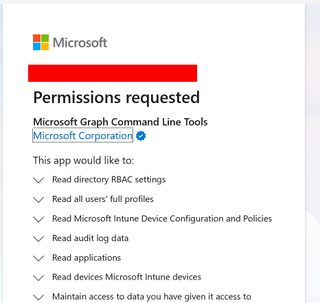
You will be prompted for permissions when connecting:
Phase 1: Immediate Actions
1. Audit and Remove Standing Privileged Access
Why this is first: Every other control assumes you know who has privileged access today. You cannot enable PIM on roles that are permanently assigned to accounts you do not know about.
Steps:
1a. Enumerate current Intune-related role assignments in Entra ID.
Navigate to: Entra admin center > Identity > Roles & admins
Or use PowerShell to pull all active assignments for the roles that matter:
# Enumerate Entra ID role assignments for all Intune-critical roles
Get-EntraPrivilegedRoleAssignment -Verbose

# Export to CSV for team review
Get-EntraPrivilegedRoleAssignment | Export-Csv -Path .\01_EntraRoleAssignments.csv -NoTypeInformation

# Check PIM eligible vs active (permanent) assignments for a specific role
Get-IntunePIMAssignment -RoleName "Intune Administrator" -Verbose

# Check all critical roles at once
"Global Administrator","Intune Administrator","Security Administrator" | ForEach-Object {
    Get-IntunePIMAssignment -RoleName $_ -Verbose
} | Export-Csv -Path .\02_PIMAssignments.csv -NoTypeInformation
Any account showing AssignmentType = "Active (Permanent)" is a candidate for conversion to PIM-eligible in Step 2.
Review assignments for each of these roles:
- Global Administrator
- Intune Administrator (also called Intune Service Administrator)
- Policy and Profile Manager
- Endpoint Security Manager
- Cloud Device Administrator
For each assigned account, answer these questions:
- Is this a dedicated admin account, or a dual-use account that also has a mailbox and receives email?
- Is this assignment permanent or time-bound?
- Is there a documented business justification for this assignment?
- Was this account created by a known process, or could it have been created by an attacker (relevant for this style of incidents)?
1b. Enumerate Intune RBAC role assignments.
Navigate to: Intune admin center > Tenant administration > Roles > All roles
Or enumerate via PowerShell:
# List all Intune RBAC role definitions and assignments
Get-IntuneRBACAssignment -Verbose

# Find overly broad assignments (All Devices / All Users scope)
Get-IntuneRBACAssignment | Where-Object { $_.ScopeType -eq 'allDevicesAndLicensedUsers' }
For each built-in and custom role, review the assignments tab. Check for:
- Roles with "All Devices" or "All Users" in scope groups (overly broad)
- Assignments to large groups rather than specific admin security groups
- Custom roles that include remote action permissions (wipe, retire, delete) alongside routine management permissions
1c. Remove standing Global Admin access.
Any account that has permanent Global Admin assigned for "Intune purposes" should have that assignment removed immediately. Global Admin is not required for routine Intune administration. Replace it with a scoped Intune RBAC role, and protect that role with PIM (next step).
Validation: After cleanup, re-run the role enumeration. You should have zero permanently assigned Global Admin accounts used for Intune management. All remaining Intune-related role assignments should be documented with a business justification.
2. Enable Privileged Identity Management (PIM)
Why second: Once you have cleaned up standing access, PIM ensures it stays clean. No one gets a permanently active privileged role again.
Decision points before you configure:
- Do you have Entra ID P2 or Entra ID Governance licensing? PIM requires this.
- Which roles will you put under PIM? At minimum: Global Administrator, Intune Administrator, Policy and Profile Manager, Endpoint Security Manager.
- What is the maximum activation duration? I recommend 4 hours for Intune roles, 1 hour for Global Admin.
- Will you require approval for activation? I recommend requiring approval for Global Admin activations. Intune Administrator can be self-activation with justification.
- Will you require MFA step-up at activation? Yes, always.
Steps:
2a. Configure PIM for the Intune Administrator role.
Navigate to: Entra admin center > Identity Governance > Privileged Identity Management > Microsoft Entra roles > Roles > Intune Administrator > Settings > Edit
Configure:
- Activation maximum duration: 4 hours
- On activation, require: Azure MFA (or authentication context if using phishing-resistant MFA)
- Require justification on activation: Yes
- Require ticket information on activation: Optional (useful if you want to tie activations to change tickets)
- Require approval to activate: No (for Intune Admin, self-activation with justification is operationally reasonable)
2b. Convert permanent assignments to eligible.
For each account that currently has a permanent active assignment, change it to "Eligible" instead. The admin will need to activate the role through PIM when they need it, and it will automatically deactivate when the time window expires.
Navigate to: PIM > Microsoft Entra roles > Assignments > select the role > change "Active" to "Eligible"
2c. Configure PIM for Global Administrator.
Same as above, but with stricter settings:
- Activation maximum duration: 1 hour
- Require approval to activate: Yes
- Designate an approver group (a small group of senior security or IT leadership)
2d. Configure alerts.
Navigate to: PIM > Microsoft Entra roles > Settings > Alerts
Enable alerts for:
- Roles are being assigned outside of PIM
- Roles do not require MFA for activation
- Potential stale accounts in a privileged role
Validation: Have an admin attempt to access the Intune admin center without activating their role. They should be denied. Then have them activate through PIM, confirm the justification is required, confirm MFA is prompted, and confirm the role deactivates after the configured window.
3. Enable Multi-Admin Approval
Why third: PIM controls who can activate a role. Multi-Admin Approval controls what they can do once they have it. This is the control that would have directly prevented the most fleet wipe attacks.
Steps:
3a. Create an approver group.
Navigate to: Entra admin center > Groups > New group
Create a security group (e.g., "Intune MAA Approvers") containing two to three senior administrators who will review and approve high-impact actions. These should not be the same people who perform day-to-day Intune administration.
3b. Ensure the approver group has the right permissions.
The approver group must be a member of at least one Intune role assignment, and members need the Approval for Multi Admin Approval permission. The simplest path: assign a custom Intune role to the approver group that includes this permission.
3c. Create access policies for each protected resource type.
Navigate to: Intune admin center > Tenant administration > Multi Admin Approval > Access policies > Create
Create separate policies for:
Policy Name | Profile Type | Approver Group |
|---|---|---|
Protect Device Actions | Device actions (wipe, retire, delete) | Intune MAA Approvers |
Protect Script Deployments | Device Management Scripts | Intune MAA Approvers |
Protect App Deployments | Apps | Intune MAA Approvers |
Protect Compliance Policies | Compliance policies | Intune MAA Approvers |
Protect Configuration Policies | Configuration policies | Intune MAA Approvers |
Protect RBAC Changes | Role-based access control | Intune MAA Approvers |
3d. Finalize each policy.
After creating a policy, you must sign in with a different admin account and finalize it by selecting "Complete." This is itself a dual-authorization step, the policy does not take effect until a second admin confirms it.
Validation: Attempt to wipe a test device. Instead of the wipe executing immediately, you should be prompted to enter a business justification and submit the request. The request should appear in the approver's Received Requests queue. Only after the approver approves it should the wipe execute.
4. Audit Graph API App Registrations
Why fourth: This closes the non-human access path. PIM and MAA protect human admin accounts, but app registrations with Intune permissions are an entirely separate control plane that most organizations do not monitor.
Steps:
4a. Enumerate all app registrations with Intune-scoped permissions.
Navigate to: Entra admin center > Applications > App registrations > All applications
Or use PowerShell for a thorough, automated sweep:
# Find all app registrations with Intune-scoped Graph API permissions
Get-IntuneAppRegistration -Verbose

# Include read-only permissions in the scan for full visibility
Get-IntuneAppRegistration -IncludeReadOnly -Verbose | Export-Csv -Path .\04_IntuneAppRegistrations.csv -NoTypeInformation

# Then audit credential expiry for every flagged app (pipeline support)
Get-IntuneAppRegistration | Get-IntuneAppCredentialStatus -Verbose

# Find the most urgent issues: expired or expiring secrets
Get-IntuneAppRegistration | Get-IntuneAppCredentialStatus |
    Where-Object { $_.Status -in @("EXPIRED","EXPIRING_SOON") }
For each application, review: API permissions tab
Look for any of these Microsoft Graph permissions:
DeviceManagementConfiguration.ReadWrite.AllDeviceManagementManagedDevices.ReadWrite.AllDeviceManagementServiceConfig.ReadWrite.AllDeviceManagementApps.ReadWrite.AllDeviceManagementManagedDevices.PrivilegedOperations.All
PrivilegedOperations.All is particularly dangerous as it includes the ability to perform remote wipe operations programmatically.
4b. For each app registration found, document:
- Who created it and when (check the audit log)
- What business process depends on it
- Whether the client secret or certificate has been rotated in the last 90 days
- Whether the permissions granted exceed what the application actually needs
4c. Remediate.
- Remove any app registration you cannot justify. If no one knows what it does and no one owns it, delete it.
- Downgrade permissions where possible (ReadWrite to Read if the app only reads data).
- Rotate all client secrets immediately and set a 90-day rotation policy going forward.
- Prefer certificate-based credentials over shared secrets.
- Block admin consent for new Intune-scoped permissions (Entra admin center > Enterprise applications > Consent and permissions > set "Users can consent to apps" to No, and require admin consent for Graph API permissions).
4d. Enable ongoing monitoring.
This is where Query 7.5 from Part 1 comes in. The IsApiActor flag in the Sentinel analytics rule specifically detects when Intune operations are performed by a service principal rather than a human User Principal Name (UPN). Deploy the query now (Phase 4 covers the full Sentinel setup) so you have visibility into any app registration performing Intune operations.
Validation: Run the Graph API enumeration again and confirm that all remaining app registrations are documented, justified, and have recently rotated credentials. Set a calendar reminder for a quarterly re-audit.
Phase 2: Short-Term Hardening
5. Enforce Phishing-Resistant MFA
Decision points:
- What phishing-resistant methods are available in your environment? FIDO2 security keys, Windows Hello for Business, or certificate-based authentication?
- Have your Intune administrators registered phishing-resistant methods? If not, you will need to issue FIDO2 keys or configure certificate enrollment before enforcing.
- Do you have break-glass accounts? These must also use phishing-resistant MFA (FIDO2 keys stored in a safe).
Steps:
5a. Verify admin MFA method registration.
Navigate to: Entra admin center > Users > select an admin account > Authentication methods
Or audit all admins at once:
# Audit MFA methods for all members of your admin group
Get-AdminPhishingResistantMFA -AdminGroupName "Intune Administrators" -Verbose

# Find admins who are at risk (no phishing-resistant method registered)
Get-AdminPhishingResistantMFA -AdminGroupName "Intune Administrators" |
    Where-Object { -not $_.HasPhishResistant }
Any admin showing HasPhishResistant = False needs a FIDO2 key issued before you enforce the phishing-resistant MFA Conditional Access policy.
Confirm that at least one phishing-resistant method is registered (FIDO2 security key, Windows Hello for Business, or certificate-based authentication). If not, issue a Temporary Access Pass and have the admin register a FIDO2 key.
5b. Create a Conditional Access policy with authentication strength.
Navigate to: Entra admin center > Protection > Conditional Access > Policies > New policy
- Name: "Require phishing-resistant MFA for Intune admins"
- Assignments > Users: Include the security group containing your Intune administrators. Exclude your break-glass accounts.
- Target resources: All resources (or scope to specific apps if you prefer to start narrow)
- Grant > Require authentication strength > select "Phishing-resistant MFA"
- Enable policy: Report-only (start here, monitor for 1-2 weeks, then switch to On)
5c. Block legacy authentication.
If you have not already done this tenant-wide, create a Conditional Access policy that blocks all legacy authentication protocols. These protocols do not support MFA at all, and a stolen credential can bypass every MFA policy through Basic Auth.
Validation: In Report-only mode, check the Conditional Access insights workbook to confirm that admin sign-ins are being evaluated against the policy and that phishing-resistant methods would be required. Once you switch to enforcement, have an admin attempt to sign in with a standard TOTP code and confirm they are blocked. Then have them sign in with their FIDO2 key and confirm access is granted.
6. Configure RBAC Custom Roles and Scope Tags
Decision points:
- What admin functions exist in your environment? Common ones: policy management, app deployment, help desk (remote actions), compliance management, security baseline management.
- Which of these functions need destructive action permissions (wipe, retire, delete)?
- How do you segment your device fleet? By geography, business unit, device type, or department?
Steps:
6a. Define your role structure.
Create custom roles that separate routine management from destructive actions. A starting model:
Custom Role Name | Key Permissions | Excludes |
|---|---|---|
Intune Policy Manager | Configuration policies, compliance policies, security baselines (Create, Read, Update, Assign) | Wipe, Retire, Delete, Script deployment |
Intune App Manager | Mobile apps, Win32 apps (Create, Read, Update, Assign) | Wipe, Retire, Delete, Script deployment |
Intune Help Desk | Managed devices (Read), remote actions (lock, sync, restart) | Wipe, Retire, Delete |
Intune Security Ops | Read-only across all categories, audit data read | All write operations |
Intune Senior Admin | Full permissions including destructive actions | Nothing (this is the elevated role, protected by PIM + MAA) |
Navigate to: Intune admin center > Tenant administration > Roles > All roles > Create
6b. Create scope tags.
Scope tags limit what devices and policies each admin role can see and manage.
Navigate to: Intune admin center > Tenant administration > Roles > Scope (Tags) > Create
Create tags that match your organizational structure (e.g., "US-East," "EU," "BYOD," "Corporate," "Engineering").
6c. Assign scope tags to devices, policies, and role assignments.
When you create a role assignment, specify both the Admin Group (who gets the role) and the Scope Groups (what devices/users they can manage). Combine this with scope tags for policy visibility.
6d. Protect the Intune Role Administrator role with PIM.
The Intune Role Administrator is the only built-in role that can assign permissions to other administrators. Treat this as a Tier 0 role. Put it under PIM with approval required, and enable Multi-Admin Approval for RBAC changes.
Validation: Sign in as a user assigned to the Intune Policy Manager custom role. Confirm they can create and assign configuration policies but cannot issue a device wipe. Then sign in as a user with the Intune Senior Admin role (activated via PIM) and confirm they can perform destructive actions, subject to Multi-Admin Approval.
7. Lock Down Intune Portal Access with Conditional Access
Decision points:
- Do you have PAWs deployed yet? If not, you can still restrict by device compliance and named locations while you build the PAW program (Phase 3).
- What named locations represent your corporate network? Office egress IP addresses, VPN egress IP addresses.
- Do you want to restrict access to specific device platforms? (e.g., only Windows devices that are Entra-joined and compliant)
Steps:
7a. Define named locations.
Navigate to: Entra admin center > Protection > Conditional Access > Named locations > New location
Add your corporate office egress IPs and VPN egress IPs as trusted named locations.
7b. Create the Conditional Access policy.
Navigate to: Conditional Access > Policies > New policy
- Name: "Restrict Intune admin portal access"
- Assignments > Users: Include the security group containing your Intune administrators
- Target resources > Select apps > Microsoft Intune, Microsoft Intune Enrollment
- Conditions > Locations: Exclude your trusted named locations (this blocks access from everywhere else)
- Conditions > Device platforms: Include only Windows (or whatever platform your PAWs run)
- Grant > Require device to be marked as compliant, AND require authentication strength > Phishing-resistant MFA
- Session: Sign-in frequency of 4 hours (forces re-authentication, limits session token lifetime)
- Enable policy: Report-only first, then On
7c. Stack with the phishing-resistant MFA policy.
These two policies work together. The MFA policy (Step 5) ensures strong authentication everywhere. This portal policy adds location and device compliance requirements specifically for Intune administration.
Validation: From a compliant device on your corporate network, confirm Intune portal access works normally. From an unmanaged device on a different network, confirm access is blocked. Check the Conditional Access sign-in logs to verify both the grant and block are logged correctly.
Phase 3: Medium-Term Hardening
8. Deploy Privileged Access Workstations
Decision points:
- How many PAWs do you need? At minimum two per critical admin function (primary + redundant).
- Will PAWs be enrolled in Intune? If yes, consider keeping at least one recovery PAW unenrolled so a fleet-wide wipe does not take out your recovery capability.
- Where will PAWs be physically stored? They need to be physically secured, not sitting on a desk in an open office.
Implementation guidance:
- PAWs should be Entra-joined, compliant, and hardened with a dedicated Intune compliance and configuration profile.
- PAWs should have no email client, no web browser for general use (or a locked-down browser that only allows access to admin portals), and no personal applications.
- Use Conditional Access to tie Intune admin portal access exclusively to PAW device compliance status.
- Store break-glass credentials (for Intune and Global Admin) in a physically secured location (sealed envelope in a safe, not in a password manager on a device enrolled in Intune).
- Document the recovery procedure: if PAWs are compromised or wiped, how do you regain access to the Intune console? Test this procedure at least annually.
Validation: Confirm that Intune admin portal access is only possible from a PAW. Confirm that the redundant PAW works. Simulate a scenario where the primary PAW is unavailable and the recovery procedure is followed.
9. Enforce Script Signing and Lock Down App Deployment
Before implementing controls, audit what is currently deployed:
# List all PowerShell scripts in Intune with content preview
Get-IntuneScriptInventory -Verbose

# Export full script content for offline review
Get-IntuneScriptInventory -PreviewLength -1 | Export-Csv -Path .\06_IntuneScripts.csv -NoTypeInformation

# List all Win32 (LOB) applications
Get-IntuneWin32AppInventory -Verbose

# Flag any Win32 apps packaging known LOLBins
Get-IntuneWin32AppInventory | Where-Object {
    $_.InstallCmd -match 'certutil|mshta|wscript|cscript|bitsadmin'
}
Review every script and Win32 app in the output. If you cannot explain what it does and who approved it, investigate before proceeding.
Steps:
9a. Set PowerShell execution policy via Intune.
Navigate to: Intune admin center > Devices > Configuration > Create > Settings catalog
Search for "PowerShell Execution Policy" and set to AllSigned or RemoteSigned. Assign to all managed devices.
9b. Establish a code-signing workflow.
- Issue a code-signing certificate from your internal PKI (or purchase one from a public CA if you do not have internal PKI).
- All PowerShell scripts deployed through Intune must be signed with this certificate before upload.
- Maintain a script inventory with filename, hash (SHA256), signer, approval ticket number, and deployment date.
9c. Restrict Win32 app deployment permissions.
Create a custom RBAC role specifically for Win32 app deployment that is separate from routine app management. Protect this role with PIM. Require MDE scanning of all .intunewin packages before upload.
9d. Block LOLBin packaging.
Establish a policy (enforced through your change management process and audited via the Sentinel analytics rule) that prohibits packaging known living-off-the-land binaries (certutil, mshta, wscript, cscript, bitsadmin) as Intune Win32 applications.
Validation: Attempt to deploy an unsigned PowerShell script to a managed device. It should fail to execute. Deploy a signed script and confirm it executes successfully. Verify that the Sentinel analytics rule fires when a new script is uploaded.
10. Harden Device Enrollment
Steps:
Before making changes, audit your current enrollment posture:
# Review current enrollment restrictions and per-user device limits
Get-IntuneEnrollmentConfig -Verbose

# Export full device inventory with compliance status
Get-IntuneManagedDeviceInventory -Verbose

# Find non-compliant devices specifically
Get-IntuneManagedDeviceInventory -NoExport | Where-Object { $_.ComplianceState -ne 'compliant' }

# List all Autopilot registered devices
Get-IntuneAutopilotDevice -Verbose

# Find Autopilot devices without a group tag (potential unknowns)
Get-IntuneAutopilotDevice | Where-Object { -not $_.GroupTag }
10a. Restrict enrollment to specific security groups.
Navigate to: Intune admin center > Devices > Enrollment > Device platform restrictions
Set default enrollment to "Block" for all platforms, then create platform-specific restriction profiles assigned to security groups of authorized users.
10b. Configure Autopilot with hardware hash enforcement.
Navigate to: Intune admin center > Devices > Enrollment > Windows Autopilot > Devices
Only devices whose hardware hashes have been pre-registered should be able to enroll through Autopilot. Block self-enrollment of unknown devices.
10c. Reduce per-user device enrollment limits.
Navigate to: Intune admin center > Devices > Enrollment > Device limit restrictions
Reduce the default from 15 to 3-5 depending on your environment. This limits the number of rogue devices an attacker can register with a single compromised account.
10d. Require MFA for enrollment.[ED1] [CP2]
Create a Conditional Access policy targeting the Microsoft Intune Enrollment app that requires MFA. This forces an MFA challenge during the device enrollment flow.
10e. Enable Enrollment Status Page.
Navigate to: Intune admin center > Devices > Enrollment > Enrollment Status Page
Configure it to block device use until all required policies and applications have been installed and compliance has been confirmed. This prevents a rogue device from accessing resources before compliance checks complete.
Validation: Attempt to enroll a device that is not in an authorized security group. It should be blocked. Attempt to enroll a device that has not been pre-registered in Autopilot. It should fail. Confirm that the MFA challenge fires during enrollment.
10f. Require MFA for device registration and join via Conditional Access
Navigate to: Microsoft Entra admin center > Entra ID > Conditional Access > Policies Select New policy and set the Target resource to User actions > Register or join devices. Under Grant, choose Require authentication strength and select the built-in Multifactor authentication strength. Set Include to All users, exclude break-glass accounts, and enable the policy. Ensure Entra ID > Devices > Device Settings > Require MFA to register or join devices is set to No. Otherwise, the Conditional Access policy will not be properly enforced.
Phase 4: Detection
11. Deploy Sentinel Telemetry and Analytics Rules
Steps:
11a. Configure Intune diagnostic settings.
Navigate to: Intune admin center > Tenant administration > Diagnostics settings > Add diagnostics setting
- Select all log categories: Audit Logs, Operational Logs, Device Compliance Org, Devices
- Destination: Send to Log Analytics workspace (your Sentinel workspace)
11b. Verify data flow.
After enabling diagnostics, wait 15-30 minutes, then run this in your Log Analytics workspace:
IntuneAuditLogs
| take 10
If rows return, data is flowing. If not, check the diagnostics setting and confirm the workspace is correct.
11c. Deploy Query 7.5 as a Scheduled Analytics Rule.
Navigate to: Microsoft Sentinel > Analytics > Create > Scheduled query rule
- Name: "Intune High-Risk Administrative Operation"
- Severity: Map to the dynamic Severity field in the query
- MITRE ATT&CK tactics: Execution, Persistence, Privilege Escalation, Impact
- Run query every: 5 minutes
- Lookup data from the last: 10 minutes
- Alert threshold: Greater than 0
- Entity mapping: Actor → Account entity, TargetName → Host entity
- Incident settings: Enable incident creation, group alerts into incidents by Actor within 1 hour
Paste the full Query 7.5 from Part 1 into the rule query field.
11d. Configure additional cross-reference rules.
Deploy separate analytics rules for:
- New Global Admin account creation (from Part 1, Entra AuditLogs query)
- Intune portal access from non-compliant device (SigninLogs query against your Conditional Access policy)
IntuneManagementExtension.exespawning suspicious child processes (DeviceProcessEvents in MDE)
11e. Test the detection pipeline.
Perform a controlled action that should trigger the rule: create a test PowerShell script in Intune and assign it to a test device group. Within 5-10 minutes, confirm that a Sentinel incident is created with the correct severity, actor, and target name.
Validation: The test incident should appear in Sentinel with all entity mappings populated. Verify that the severity scoring logic is working: a script deployment to a test group should be "High," while a script deployment to "All Devices" (which you should never do in production) would be "Critical."
Appendix: Running the Full Audit
If you want to run the complete audit before starting the implementation phases, the module includes Invoke-IntuneSecurityAudit, which combines every enumeration function into a single execution. It produces a timestamped output directory with eight CSV files covering the full Intune security posture.
# Dot-source the module
. .\Invoke-IntuneSecurityAudit.ps1

# Connect and run the full audit
Connect-IntuneSecurityAudit -Verbose
Invoke-IntuneSecurityAudit -Verbose

# Customize the admin group name and output location
Invoke-IntuneSecurityAudit -AdminGroupName "Tier0 Admins" -OutputDirectory "C:\Audits" -Verbose
The audit produces these output files:
File | Contents |
|---|---|
01_EntraRoleAssignments.csv | Entra ID privileged role members (Global Admin, Intune Admin, etc.) |
02_PIMAssignments.csv | PIM eligible vs permanent assignments for critical roles |
03_IntuneRBACAssignments.csv | Intune RBAC role definitions and scope assignments |
04_IntuneAppRegistrations.csv | App registrations with Intune Graph API permissions |
05_AdminMFAMethods.csv | Admin authentication methods (flags missing phishing-resistant MFA) |
06_IntuneScripts.csv | All deployed PowerShell/Shell scripts with content preview |
07_EnrolledDevices.csv | Full device inventory with compliance state |
08_EnrollmentConfig.csv | Enrollment restrictions and per-user device limits |
When run with -Verbose, the function provides a running summary including the number of admins lacking phishing-resistant MFA, the count of flagged app registrations, and the total deployed scripts. Review the CSV files with your team and use the results to prioritize which Phase 1 actions need the most attention in your environment.
Every function in the module supports standard PowerShell pipeline operations. You can pipe output between functions (Get-IntuneAppRegistration | Get-IntuneAppCredentialStatus), filter with Where-Object, export with Export-Csv, and control verbosity with -Verbose. Run Get-Help <FunctionName> -Full for detailed parameter documentation and examples.
Implementation Checklist
Use this as a tracking sheet as you work through the phases, this is how one would look, please do not skip this step:
# | Control | Phase | Status | Validated |
|---|---|---|---|---|
1 | Audit/remove standing privileged access | 1 | ☐ | ☐ |
2 | Enable PIM on Intune roles | 1 | ☐ | ☐ |
3 | Enable Multi-Admin Approval | 1 | ☐ | ☐ |
4 | Audit Graph API app registrations | 1 | ☐ | ☐ |
5 | Enforce phishing-resistant MFA | 2 | ☐ | ☐ |
6 | Configure RBAC custom roles + scope tags | 2 | ☐ | ☐ |
7 | Lock down portal access (Conditional Access) | 2 | ☐ | ☐ |
8 | Deploy PAWs with redundancy | 3 | ☐ | ☐ |
9 | Script signing + app deployment controls | 3 | ☐ | ☐ |
10 | Harden device enrollment | 3 | ☐ | ☐ |
11 | Deploy Sentinel analytics (Query 7.5) | 4 | ☐ | ☐ |
Closing Thought
If you got through all 11 controls, you have built a layered defense model that addresses every vector that we have seen attackers abuse and several more that have been documented in research but have not yet made headlines. The controls reinforce each other: PIM controls who can activate a role, MAA controls what they can do with it, Conditional Access controls where they can do it from, RBAC controls the scope of what they can see, and Sentinel tells you when something abnormal happens despite all those gates.
No single control is sufficient. The value is in the stack. And if something does get through, you will know about it in minutes rather than days.
If you want help assessing your Intune security posture or implementing these controls in your environment, get in touch with us. This is the work the Remediation Team at Trustedsec does every day.