Notepad++ Plugins: Plug and Payload

Table of contents
Notepad++ has been in the news recently for a breach of infrastructure associated with the Notepad++ updater. This attack may have allowed an adversary to deliver backdoored updates which could allow arbitrary code execution inside of existing Notepad++ installations. If you have read my other blog posts on Meterpreter BOFLoader and Offensive Python, you will realize I have a fondness for old techniques. Code execution inside of Notepad++ is not new, but many of our clients are either not looking for it or have misguided assumptions about what malicious Notepad++ execution looks like. For these reasons, it seemed fitting to talk about some of the ways we on the Targeted Operations team use Notepad++ during our assessments.
Revisiting Notepad++ Plugins
Let's go over the basics of Notepad++ plugins. Plugins are simply Windows DLL files stored in a folder inside the Plugins directory. If you used the standard Notepad++ installer, it would be located inside C:\Program Files\Notepad++.
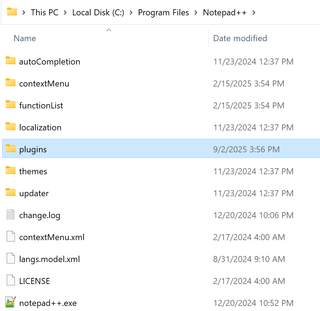
This is important because low-privileged users cannot create files inside of Program Files, including the Notepad++ plugins folder. If not running as administrator, an attacker can do one of two (2) things:
- Use the portable Notepad++ installer
- Copy existing Program Files Notepad++ folder to a writable location
For the rest of this blog, I'll be using the portable Notepad++ version. This will allow us to edit plugins just by modifying files inside the plugins folder. First, open the plugins folder to view the currently installed plugins. Notepad++ comes with a few by default.
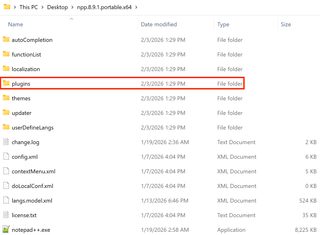
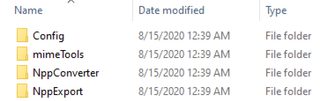
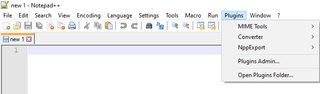
When started, Notepad++ loads each of the plugins listed in these folders. Functionality is accessible in the plugins tab on the top bar.
A Simple Example
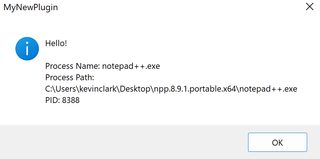
To understand the structure of a Notepad++ plugin, let's make a simple example. I wanted some code that adds a menu item which displays a message box printing the current process name and PID. This will demonstrate basic Win32 API usage and Notepad++ plugin design. This plugin is written in C, and I decided to name it, MyNewPlugin. After compiling the plugin into a DLL file, we can create the appropriate folder and drop the DLL into place.

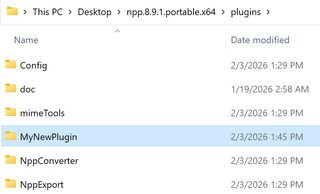
Then, we can drop our DLL file into this folder and restart Notepad++. Afterwards, a new menu item should appear in the plugins menu.
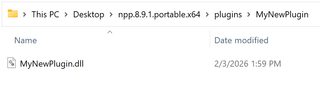
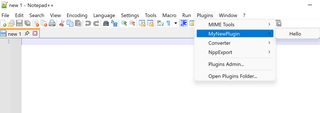
Upon running the "Hello" function, a MessageBox pops up with some information about the Notepad++ process. Example plugin Success!
Notepad++ has a handful of specially named functions that can be fulfilled by plugin code. Note that since Notepad++ plugins are DLLs, DllMain is also called on plugin initialization. Below is a non-comprehensive list of special function names and their purpose.
Function (export) | How function called | Function purpose |
|---|---|---|
setInfo(NppData notepadPlusData) | Called once by Notepad++ when the plugin DLL is loaded | Exchange info between core and plugin and initialize plugin menu |
getName(void) | Called once by Notepad++ during plugin initialization | Send plugin name from plugin to populate Notepad++ plugins list |
getFuncsArray(int* nbF) | Called once by Notepad++ after setInfo() | Sets the number of menu commands and defines what menu items the plugin exposes |
beNotified(SCNotification* notifyCode) | Called on certain Notepad++ events such as file open, buffer change, and other UI events | Allows the plugin to react to user activity in the main Notepad++ program |
messageProc(UINT Message, WPARAM wParam, LPARAM lParam) | Called by Notepad++ to send other messages to the plugin | Additional method for communication between core and plugins, especially to send large data to plugin |
isUnicode(void) | Called by Notepad++ on initialization | check compatibility settings of plugin |
This might seem intimidating if designing a plugin for the first time, but many of these functions can simply be left blank or be stubs that do nothing except return a static value. More complicated plugins will want full implementations for these functions. Additionally, since many of these functions are called on startup, it gives us great flexibility in how to design our payload plugin if we want to backdoor Notepad++.
A More Complicated Example
I spent some time trying to make a weaponized Notepad++ plugin. As with my previous blog post, I think a reflective DLL loader is adequate enough to demonstrate a real offensive capability. The following is a Notepad++ plugin capable of loading DLLs reflectively from a file or URL. It also has a few additional quality of life features for the operator.
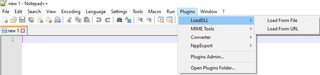
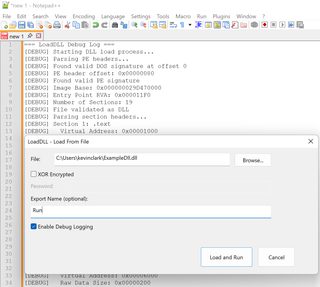
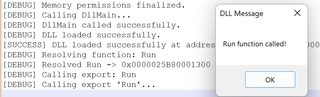
As attackers, we have to balance usability with stealth, and we run into a few problems about creating our own custom Notepad++ payload plugin. In many cases, the above tool may work just fine. However, it's important to note the fact these two (2) issues:
- We have to drop a DLL file with offensive capabilities to disk
- The plugin DLL is not signed or trusted in any way
Given the choice, it might be smarter to use an existing and somewhat trusted Notepad++ plugin that we could load code into instead. This brings us to the part where we get to talk about the plugin store.
Notepad++ Plugin Store
Notepad++ plugins are normally installed via the built-in plugin store. Under the Plugins menu, open the Plugins Admin interface.
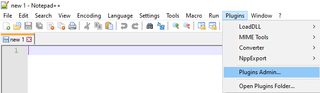
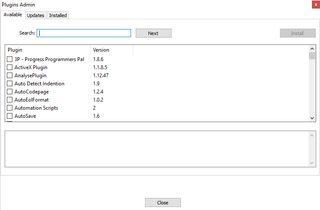
There are a lot of interesting plugins available to download, and I'd encourage readers to take a look for themselves. The first one that caught my eye was called, PythonScript. As a big fan of Python, I thought it might be interesting to see if it could be weaponized in any way.
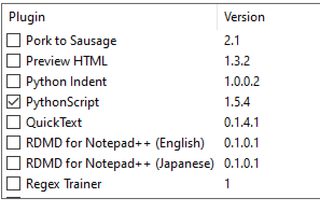
When installed, a few new files are populated and can be viewed in the new plugin folder. Additionally, menu items showing Python-related functions are now available inside of Notepad++.
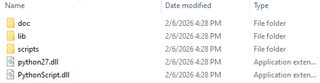
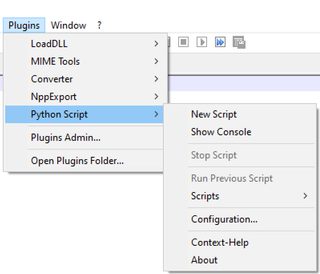
Unfortunately for us, this version of PythonScript is using the Python interpreter version 2.7. What year is it?
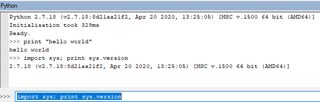
It might still be possible to use this for payload deployment, but I haven't written anything Python 2.7 in many years. It would be a lot nicer if this plugin was Python 3.
Upgrading PythonScript to Version 3
Why the latest PythonScript plugin is still using Python 2.7 beats me. However, the developer has an experimental PythonScript version 3 we can install by simply swapping out the plugin DLL files. Start by navigating to the PythonScript GitHub release page. Next, download one of the Python 3 releases, which are currently in an alpha release.
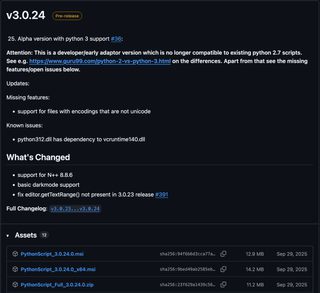
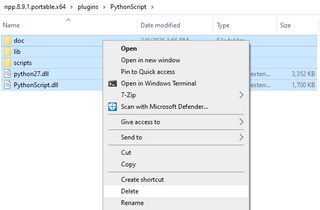
Next, clear out the entire PythonScript folder to make room for the new Python 3 interpreter and PythonScript DLLs.
Next, copy all files from the PythonScript 3 release into the PythonScript plugin folder.
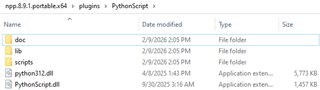
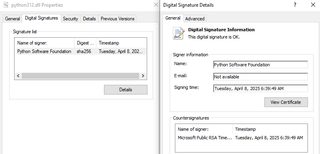
Additionally, the DLL running the Python 3 interpreter is digitally signed, adding some legitimacy to its execution.
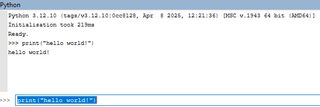
Next, restart Notepad++ and open the PythonScript console which should now be running Python 3.12 or above.
As with the Python DLL loader script used in my previous blog post, an attacker could use Notepad++ to load an arbitrary DLL from memory. An oddity with the Notepad++ PythonScript plugin is that it doesn't have a method to pass command-line arguments into scripts, so all configuration variables must be hardcoded. Use the hardcoded version of the DLL loader and save it in the scripts directory inside of the PythonScript folder. Modify the paths to suit your needs.
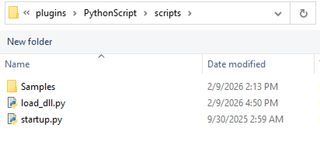
After your script has been saved to this folder, it will appear in the PythonScript scripts list.
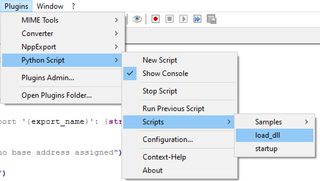
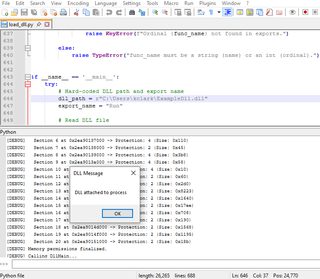
Finally, we can use PythonScript to execute a DLL payload.
The Pip Problem
At this point, we have a full Python interpreter running inside of Notepad++. We could run basic scripts utilizing whatever is provided in the standard library. However, PythonScript has no way of installing packages into the Python environment. If we want to use tools that require external dependencies, we need to find another way to import packages.
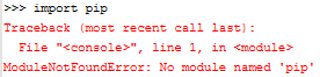
Under these restrictions, I wrote a standard library only package downloader and installer designed for the PythonScript execution environment.
First, use the offline package downloader on a system with Pip installed to create an archive of packages based on a single package or requirements.txt file. The downloader will take into account package requirements and the requirements of those packages, recursively.
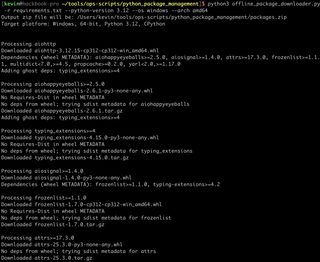
A new file called, packages.zip should have been created. Transfer this file to the Notepad++ host. Next, use the embedded Python package installer script to install packages within packages.zip. Make sure you update the script to point to the correct package path.
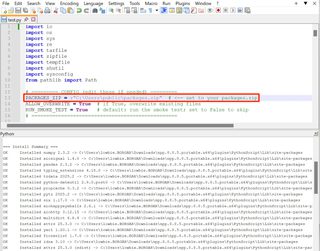
Afterwards, scripts that require the installed dependencies will run properly. To test, I used Messenger, which relies on the aiohttp and pycryptodome libraries.

Defensive Measures
Unfortunately, there is no native way to forcibly disable plugins from loading in Notepad++ or prevent plugin installation completely. The -noPlugin flag will do this but does not prevent an attacker from bringing their own Notepad++ or launching it without this flag. The best bang for your buck mitigation will be application control used to prevent the execution of notepad++.exe outside the C:\Program Files\Notepad++ folder. Non-administrative users will not be able to install plugins here, limiting most of the abuse of Notepad++. Defenders should also understand that Notepad++ should be treated as a high-risk process, similar to other LOLBins or script interpreters like Python and PowerShell. Network connections originating from Notepad++ to unknown hosts is often a clear indicator of malicious plugin usage. Finally, if it’s an option, think about removing Notepad++ entirely.