Building a Detection Foundation: Part 2 - Windows Security Events
Table of contents
The Audit Policies Nobody Configures
In Part 1, we looked at why relying on a single telemetry source is a recipe for blind spots. Now let's get practical. Windows has a rich set of security auditing capabilities built in—capabilities that are often either disabled entirely or only partially configured.
I've audited environments where ‘auditing is enabled’ turned out to mean that someone checked a box years ago without understanding what it actually captured. In other cases, the defaults were never touched, which means critical events simply aren't being generated.
Let's fix that.
Understanding Advanced Audit Policy
Windows has two audit policy systems: the legacy Local Security Policy settings and the more granular Advanced Audit Policy Configuration. You want the advanced version. It gives you fine-grained control over exactly what gets logged.
You'll find these under: Computer Configuration → Windows Settings → Security Settings → Advanced Audit Policy Configuration
The categories that matter most for our detection foundation are:
- Logon/Logoff – Session tracking and LogonID correlation
- Account Logon – Authentication events (especially for domain controllers)
- Detailed Tracking – Process creation, process termination
- Object Access – File, registry, and other object access (when SACLs are configured)
- Privilege Use – Sensitive privilege operations
And yes, I know there are gaps, and that there is more we can enable, but in this series, we are working on a foundation you can build upon. Our Purple Team can assist you with expanding this and ensuring you have proper coverage for techniques used by actors that target your industry, and can help tailor the detections in your environment. If you'd like to learn more, please get in touch with us. Let me walk through the essentials.
Logon and Logoff Events: Your Forensic Backbone
I cannot overstate how important these events are. They're not flashy. They don't directly tell you ‘malware executed here.’ But they're the foundation for correlating everything else.
Event ID 4624 – Successful Logon
This event fires every time an account successfully logs on to a system. It tells you:
- Who logged on (account name, domain)
- From where (source IP address, workstation name)
- How (logon type)
- The LogonID assigned to this session
- That LogonID is gold. It appears in subsequent events (process creation, object access, etc.) and lets you trace all activity back to a specific session.
Logon Types You'll See:
Type | Meaning | Why It Matters |
|---|---|---|
2 | Interactive | Physical console logon or RDP |
3 | Network | SMB, WinRM, network share access |
4 | Batch | Scheduled task execution |
5 | Service | Service account starting |
7 | Unlock | Workstation unlocked |
9 | NewCredentials | RunAs with /netonly |
10 | RemoteInteractive | RDP specifically |
11 | CachedInteractive | Cached domain credentials |
Type 3 (Network) logons are especially common in lateral movement. Type 10 is your RDP indicator. Type 9 shows up in credential abuse scenarios.
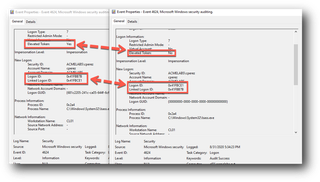
One thing to keep in mind, in recent versions of Windows there will be 2! LogonIDs—once for the user session and another for an elevated session that is linked in case the user needed to run something at a higher level. Even more reason to log this event.
Event IDs 4634 and 4647 – Logoff Events
4634 logs when a session ends. 4647 logs user-initiated logoffs (interactive). You need both.
Here's why this matters operationally: LogonIDs get recycled. If you see process creation events with a specific LogonID but don't have the logoff event, you can't definitively say whether that activity happened during the original session or a later one that happened to receive the same ID. I've seen investigations where analysts incorrectly scoped attacker activity because they didn't have logoff events to bound the session. Don't let that be you.

Enabling Logon/Logoff Auditing
Via Group Policy:
Computer Configuration
  → Windows Settings
    → Security Settings
      → Advanced Audit Policy Configuration
        → Logon/Logoff
Enable (Success and Failure) for:
- Audit Logon – Captures 4624, 4625 (failed logons)
- Audit Logoff – Captures 4634, 4647
- Audit Special Logon – Captures 4672 (sensitive privilege assignment)
Via Command Line (auditpol) for those that use scripts to configure systems and maintain state:
auditpol /set /subcategory:"Logon" /success:enable /failure:enable
auditpol /set /subcategory:"Logoff" /success:enable /failure:enable
auditpol /set /subcategory:"Special Logon" /success:enable /failure:enable
Process Creation: The 452-Technique Workhorse
Remember from Part 1 that Process Creation covers 452 ATT&CK techniques—more than any other data component. Windows provides Event ID 4688 for this, but there's a catch: by default, it doesn't include the command line.
A process creation event without the command line is like a security camera that captures someone entering a building but doesn't record what they're carrying. You know something happened, but you don't know what.
Event ID 4688 – Process Creation
When properly configured, 4688 tells you:
- What process was created (NewProcessName)
- Who created it (SubjectUserName, SubjectLogonId)
- The parent process (ParentProcessName—but see caveats below)
- The full command line (CommandLine—when enabled)
- The LogonID (there it is again)
Enabling Command Line Logging
This is a two-step process and both steps are required:
Step 1: Enable the audit policy
Computer Configuration
  → Windows Settings
    → Security Settings
      → Advanced Audit Policy Configuration
        → Detailed Tracking
          → Audit Process Creation: Success
Or via command line:
auditpol /set /subcategory:"Process Creation" /success:enableStep 2: Enable command line inclusion
Computer Configuration
  → Administrative Templates
    → System
      → Audit Process Creation
        → Include command line in process creation events: Enabled
Or via registry:
reg add
"HKLM\SOFTWARE\Microsoft\Windows\CurrentVersion\Policies\System\Audit" /v ProcessCreationIncludeCmdLine_Enabled /t REG_DWORD /d 1 /f
Real-World Example: Why Command Lines Matter
Let's say your EDR alerts on powershell.exe executing. That's useful, but it's not actionable without context. Compare these two scenarios:
Without command line logging:
New Process: C:\Windows\System32\WindowsPowerShell\v1.0\powershell.exe
User: DOMAIN\john.smith
What did PowerShell do? No idea.
With command line logging:
New Process: C:\Windows\System32\WindowsPowerShell\v1.0\powershell.exe
User: DOMAIN\john.smith
Command Line: powershell.exe -nop -w hidden -enc SQBFAFgAIAAoAE4AZQB3AC0ATwBiAGoA...
Now you know you're looking at encoded command execution, a common indicator of malicious activity that we see very often. You can decode that Base64 and see exactly what the attacker intended to run.
A Note on Parent Process Information
Event ID 4688 includes CreatorProcessId and, on newer Windows versions, ParentProcessName. However, the parent-child relationship in native Windows logging has limitations:
- Parent process may have exited by the time you investigate
- PPID spoofing can deceive this field
- The relationship isn't as robust as what Sysmon provides
We'll address these gaps in Part 4 when we cover Sysmon.
Additional Events Worth Enabling
While logon and process creation form the backbone, consider these additions:
Event ID 4672 – Special Privileges Assigned
- Fires when a logon involves sensitive privileges (SeDebugPrivilege, SeTcbPrivilege, etc.). Useful for identifying privileged sessions.
- Already covered by Audit Special Logon above.
Event ID 4648 – Explicit Credential Logon
- Logs when someone uses explicit credentials (RunAs, network auth with different creds). Appears in credential theft scenarios.
Enable via:
Advanced Audit Policy → Logon/Logoff → Audit LogonEvent ID 4697 – Service Installation
- Logs new service creation, a common persistence mechanism.
Enable via:
Advanced Audit Policy → System → Audit Security System Extension: SuccessEvent IDs 4698, 4699, 4700, 4701, 4702 – Scheduled Task Operations
Scheduled tasks are heavily abused for persistence and execution. These events cover creation, deletion, enabling, disabling, and modification.
Enable via:
Advanced Audit Policy → Object Access → Audit Other Object Access Events: SuccessPutting It Together: A Baseline Audit Configuration
Here's a minimum viable audit policy for detection coverage. Apply this via GPO to your environment:
:: Logon/Logoff
auditpol /set /subcategory:"Logon" /success:enable /failure:enable
auditpol /set /subcategory:"Logoff" /success:enable
auditpol /set /subcategory:"Special Logon" /success:enable

:: Account Logon (important for DCs)
auditpol /set /subcategory:"Credential Validation" /success:enable /failure:enable
auditpol /set /subcategory:"Kerberos Authentication Service" /success:enable /failure:enable
auditpol /set /subcategory:"Kerberos Service Ticket Operations" /success:enable /failure:enable

:: Detailed Tracking
auditpol /set /subcategory:"Process Creation" /success:enable
auditpol /set /subcategory:"Process Termination" /success:enable

:: System
auditpol /set /subcategory:"Security System Extension" /success:enable

:: Object Access (for scheduled tasks)
auditpol /set /subcategory:"Other Object Access Events" /success:enable

:: Don't forget command line logging
reg add
"HKLM\SOFTWARE\Microsoft\Windows\CurrentVersion\Policies\System\Audit" /v ProcessCreationIncludeCmdLine_Enabled /t REG_DWORD /d 1 /f
The LogonID Correlation in Practice
Let me show you why all of this connects. Say you're investigating suspicious activity and you find this process creation event:
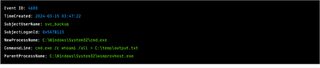
The parent process is wsmprovhost.exe—that's WinRM. So, this command was executed via PowerShell Remoting or WinRM.
Now you pull the 4624 event with LogonID 0x5A7B123:
Event ID: 4624
TimeCreated: 2024-03-15 03:45:11
TargetUserName: svc_backup
LogonType: 3
IpAddress: 10.20.30.40
WorkstationName: WORKSTATION01
Now you know: someone from 10.20.30.40 (WORKSTATION01) used the svc_backup account to authenticate via network logon, then executed commands via WinRM. The LogonID ties it all together.
If you had the 4634 logoff event, you'd know exactly when this session ended, allowing you to scope all activity within that window.
What We're Still Missing
Native Windows Security logging gets us a solid foundation, but it has gaps:
- Command execution beyond what creates a new process (in-memory, loaded DLLs)
- Detailed network connection information (What IP address did that process connect to?)
- Registry modifications by process
- File creation tracking
- DNS queries
These gaps are why we'll cover PowerShell logging in Part 3 and Sysmon in Part 4.