So… You Found AWS Access Keys (Part 1)

Table of contents
Finding plaintext access keys to an AWS account during an engagement is always great thrill. What can be done with them? What do they have access to? Are they even for any of the accounts in scope? It can be super difficult to tell any of this just from the access key, security key, and maybe session token that you found.

After all, AWS has more than 200 freaking services and products, at least based on how they tend to count things. They also don’t all necessarily authenticate in the same way or with the same looking token formats. Regardless, it can be a lot. But we’re going to walk through some of it today and see if we can get some clarity for everyone that may just be looking at the report of whatever secret scanning tool was just run and your mind is just shouting into the void, “Great! Now what the frak do I do with this?!”
AKIA to ASIA and In-Between
The main form of AWS access that most people know about is one of two types: Long-Term Access Keys and Temporary Access Keys. These are what we’re focusing on today. Both are combinations of strings that provide the access and look like the popular “AKIA” identifier for long-term keys and “ASIA” identifier for maybe lesser known but far more utilized temporary keys.
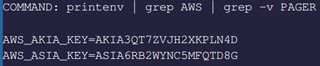
- AKIA: Long-term access keys for an IAM user’s programmatic access.
- ASIA: Temporary access keys created by AWS services on your behalf, such as when a
sts:AssumeRoleor similar is used to assume an IAM role.
“He went to find AKIA?”
Well, what can be done with these? That’s what we’re trying to get to! Oh! And there’s more access methods than just these, but we’ll start here. We’ll get into others in later posts, but these two are kind of the queens of the realm. And we’re not authenticating to anything unless we have both in our hands.

- AWS Access Key ID (AKIA) is usually 20 characters that always have AKIA’ as the first four characters.
- AWS Secret Access Key is a 40-character alpha-numeric string made up of randomized upper, lower, digits, and some symbols characters.
Most secret scanning tools have regex patterns just for the AKIA key. If you get a ping for one, then look at the surrounding data to see if you’re lucky enough to get the secret key as well.
While we need both to authenticate, it’s not to say our hands are completely tied if we only find the AKIA access key ID. With just the AKIA string we can get the account ID and further checks that can be made with it below in 12 Digits to Discovery.

Last note, I swear. S3 Presigned URLs also include an AKIA key and secret value in their URLs, but these are slightly different. They are temporary key values in their own way and just provide direct access to the object in S3 that has been shared for a small window of time (One hour by default, 12 hours max). So, while they don’t provide access like IAM user access keys do, they may still let you download the object specified in the URL. And that may be useful.

Longing To Return To ASIA
The other kind of AWS access Key ID is the ASIA one. It requires three parts to check if you’ll have any luck with using it to gain access. Similar to AKIA access, all three are needed to be able to authenticate to AWS.
- AWS Access Key ID (ASIA) is the same kind of 20 characters, but this time has ‘ASIA’ as the first four characters.
- AWS Secret Access Key has same characteristics as before being a 40-character alpha-numeric string made up of randomized upper, lower, digits, and some symbols characters.
- AWS Session Token is an 825-character string that is also made up of randomized upper, lower, digits, and some symbols characters.
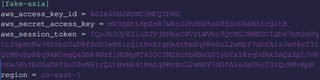
But wait, there’s another hitch! ASIA keys are just temporary credentials and are only valid for a minimum of one hour to a maximum of 12 hours. The actual max duration is based on what’s configured on the actual role. Which is sometimes unchangeable, such as with AWS defined linked service-roles.
Uhh… I don’t have a meme for this part, but I live as a digital nomad, so enjoy this picture of a pair of crows that I took when I last roamed around Japan!

Maybe Getting Lucky
I didn’t really want to get into the question of “Where can I find AWS keys or tokens?”, because that is a big question with a lot of different answers; each of which depends on the differences with various AWS environments, corporate security hygiene, deployment pipeline security, and many, many more variations. BUTT, I feel like I should at least cover common credential locations if local system access is obtained in some way. It’s kinnnnda important.
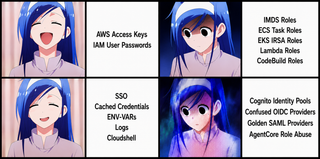
Basically:
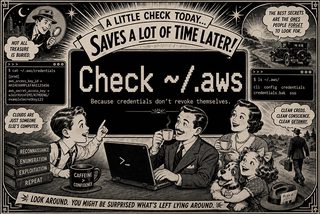
That’s the meat of it, but here’s why:
~/.aws/credentialscan be configured with AKIA and ASIA credentials. Take note of [profile] and region for operational awareness. (i.e. if set to us-east-1, maybe don’t start enumerating eu-west-1 and cause Blue Team lights to start flashing. Regions can matter more in AWS than they may in other cloud providers, so it’s worth taking note.)~/.aws/configcan be used to store configuration data, but AWS CLI also supports role-chain assumptions and those can be set up here throughsource_profiledeclarations, as seen here. Check profile and region for similar reasons.~/.aws/sso/and~/.aws/cli/are used to store AWS SSO login and SYS AssumeRole details. Copy to a test environment and see what access may be there. Access here may be especially short lived and may need to be refreshed after the user logs in again. (Grabbing the logged in SSO session from their browser may be good to do if possible)
Also, be sure to check ENV for access key ID, secret access key, and session token. Similarly, check ~/.bash_history for them. Just like with other tooling, they can all be specified as in-line environmental variables. (e.x. AWS_ACCESS_KEY_ID=AKIA... AWS_SECRET_ACCESS_KEY=qazWSX... aws s3 ls)
Also check any log files you can find, especially if you're interacting with a CI/CD system for deploying into AWS.
The ~/.aws/ directory isn’t encrypted by default, so maybe use something like aws-vault to do this for you.
Lastly, if you’re not sure where exactly your shell landed or if you got an SSRF and are just curious, give the below addresses a shot. If they return something fun, then you may be on those resources.
URL | Resource | Notes |
|---|---|---|
http://169.254.169.254/latest/meta-data/instance-id | EC2 | IMDSv2 is required if it complains about being unauthorized. If local execution is possible then just get the token or if access is through SSRF then try with the gopher protocol. |
http://169.254.170.2/v4/credentials | ECS | No token required, so SSRF is straightforward. |
http://169.254.170.23/v1/credentials | EKS IRSA | Endpoint depends on EKS identity configuration. IRSA typically uses web identity tokens; Pod Identity uses the agent credential endpoint. |
But… finding initial access is a rabbit hole that goes deep, so we’ll move along for now…
What To Do With the Things You Found
The first thing to do is to set up a place to use these compromised keys. The easiest way is to install the AWS CLI (Steps for which can be found here).
Once installed, the keys can be tested using in-line, system environmental variables or by saving them to a profile in ~/.aws/credentialslike below. The profile can also be set up with AWS CLI’s configure command by specifying a profile on run:
aws configure --profile $PROFILE-NAME.The annoying thing though, is that it doesn’t allow specifying the aws_session_token value. So if you find an ASIA key, then manually updating the credentials file is your only real option to use profiles.
[AKIA-PROFILE]
aws_access_key_id = AKIAI44444444EXAMPLE
aws_secret_access_key = je7MtGbCwBF/2...[rest of key]...

[ASIA-PROFILE]
aws_access_key_id = ASIAI66666666EXAMPLE
aws_secret_access_key = qRstUvwXyZ12...[rest of key]...
aws_session_token = FwoGZXIvYXdzEGo...[rest of token]...
You can also specify a default AWS region for commands to be sent to, which can always be overridden with the --regionflag. There are a lot of options for these configuration files, as seen here. Using profiles in your AWS configuration files makes it all so much easier. You’ll thank me later.
A Teaspoon of Stealth Helps the AWS Mapping Go Down
Before you start firing off API calls, consider taking advantage of VPC Endpoints. They're VPC resources that enable private connectivity to AWS services and can add a little bit of stealth to our enumeration activities. Data is still logged by CloudTrail, but the only two real flags for detection.
The biggest flag or detection is that the vpcEndpointId value will not exist in the target account because it exists in your test AWS account. A target SOC team will need to have a means to check this value against known valid VPC IDs to flag noncompliance. The other is the sourceIPAddress which will be a RFC1918 private IP address and still could be in a valid range. I’m not sure why, but AWS decided to not log the source account ID or organization ID, which would help a lot here.
Each type of endpoint breads down like this:
- Gateway endpoints only support S3 and DynamoDB by setting up a Route53 DNS record for AWS API calls and doesn’t cost anything at all.
- Interface endpoints support many, many more services (including S3 and DynamoDB as well) by setting up an Elastic Network Interface (ENI) with a private IP in your subnet for each AWS service. Each of these has a cost associated with their use. It’s not much, but it’s not nothing.
I considered providing example commands, but I’ll leave that as an exercise for the reader.

“Who is it that can tell me who I am?”
Okay! You’ve got keys. They’re configured. But who even are you? Before you go off trying to list S3 buckets and EC2 instances, you should probably figure out what identity you’re actually operating under. The action, sts:GetCallerIdentity,is sort of the gold standard because it’s basically the whoami of AWS. It always works, it can’t be denied by IAM policy, and it tells you exactly who you are, and it validates that the credentials are legitimate!
aws --profile $PROFILE sts get-caller-identity
And from it, you get three things:
- UserId: The AIDA (for IAM users) or AROA (for assumed roles) unique identifier. Kinda useless in a way now since we already know the principal details from the other two, but we can save them for later.
- Account: The 12-digit account ID. Good for finding out what else may be public in the account. See Search for Public Data.
- A Resource Name (ARN): This is the full identifying details of the calling identity. Most resources in AWS have one so that they can be found a bit more easily. But there’s some good stuff here since you can potentially infer the use for the identity based on its name. Which can influence what services you enumerate first. You can also look for the ARNs or the role name when doing additional recon, see Mining for a Clue.
The downside is that it gets logged by CloudTrail, which looks like this:
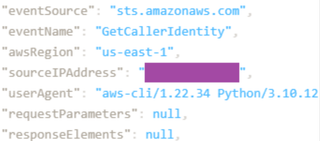
As expected, it includes the IP address of whatever coffee shop you’re working out of today unless you’re masking it. But thanks to plenty of legitimate tooling, calling sts get-caller-identityisn’t super suspicious, but it is visible. So, if the target’s log warriors have alerting on identity-check API calls, it may get some attention.
Doing Wrong the Right Way
Another way to get the ARN for the identity is to just do things the wrong way. You see, when a call is made to an AWS API that the identity doesn’t have permission for it gets a classic AccessDenied error. This is expected; but AWS’s sage wisdom decided to also include the ARN of the identity used for the API call.
aws --profile $PROFILE cloudtrail describe-trailsIn this case, if you don’t have CloudTrail permissions, the error response will typically look something like:
An error occurred (AccessDeniedException) when calling the DescribeTrails operation: User: arn:aws:iam::123456654321:user/demo.user is not authorized to perform: cloudtrail:DescribeTrails because no identity-based policy allows the cloudtrail:DescribeTrails action.You can try this with other services as well, but each attempt is another logged event in CloudTrail. Just something to keep in mind if you’re really trying to focus on stealth. This method looks like a failed API call rather than an explicit “who am I?” check, so this paired with using VPC Endpoints may cause it to blend in with the cacophony that is the rest of the operational noise.
It’s worth noting that this method will also validate if the keys are legitimate. If the credentials are invalid, then AWS just returns this error:
An error occurred (SignatureDoesNotMatch) when calling the GetCallerIdentity operation: The request signature we calculated does not match the signature you provided. Check your AWS Secret Access Key and signing method. Consult the service documentation for details.12 Digits to Discovery
So now we know the account ID and potentially name of the identity. So, where do we go from here? Well, we can check a few things with just the account ID before we need to touch the verified credentials again. Some resources in AWS can be configured so that they can be shared with other specific AWS accounts or even public to anyone. So, using an AWS account we control we can check to see if any of those may publicly available.
Why? Because I said so! But also, because these may be interesting resources like Elastic Block Storage (EBS) snapshots, Relational Database Service (RDS) snapshots, prebuilt Amazon Machine Image (AMI) resource, or Elastic Container Registry (ECR) images. They’re all used in different ways, but each could contain some useful operational context of the account you’re trying to get into and, if you’re lucky, additional credentials to do so.
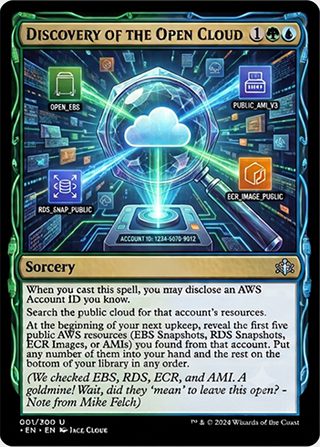
EBS Snapshots. Search for snapshots owned by the target account and you might be surprised what delicious things are found.
aws --profile $TEST-ACCOUNT-PROFILE ec2 describe-snapshots --owner-id $TARGET-ACCOUNT-ID --query 'Snapshots[*].[SnapshotId,Description,VolumeSize,StartTime]' --output tableIf you find any, then, in your own account, create a volume from the snapshot, attach it to an instance, mount it, and browse it. Snapshots may include application data, database files, credentials, SSH keys, and config files that were never meant to leave the environment.
AMIs: Publicly available prebuilt images used to deploy new EC2 instances and could suffer from the same malady as EBS snapshots.
aws --profile $TEST-ACCOUNT-PROFILE ec2 describe-images --owners $TARGET-ACCOUNT-ID --query 'Images[*].[ImageId,Name,Description,CreationDate]' --output tableLaunch one as an EC2 instance in your own account and explore to hunt for useful files that should have remained private.
RDS Snapshots: Public database snapshots that can be restored into your own account. Filtering for these by account is clunky via CLI, but they’re worth hunting for because finding a public snapshot may give you the full database details.
aws --profile $TEST-ACCOUNT-PROFILE rds describe-db-snapshots --include-public | jq -r --arg acct "$TARGET-ACCOUNT-ID" '.DBSnapshots[] | select(.DBSnapshotArn | contains($acct)) | [.DBSnapshotIdentifier, .Engine, .SnapshotCreateTime] | @tsv'ECR Public Repositories: Container images may contain embedded secrets, internal source code, and configuration that reveal architecture patterns. Another good resource to check for potential easy wins.
aws --profile $TEST-ACCOUNT-PROFILE ecr-public describe-repositories | jq -r --arg acct "$TARGET-ACCOUNT-ID" '.repositories[] | select(.repositoryArn | contains($acct)) | [.repositoryName, .repositoryUri, .createdAt] | @tsv'OSINT: Just Do It!
Another option is to just take advantage of what another service may have already found out. I’m talking about those online services that index environments and set up a searchable dataset to help reconnaissance. Good stuff! What’s found may reveal exposed infrastructure for your awareness without burning API calls and therefore not generating events in the target account.

Honestly, it doesn’t take too long to do, and it can reveal a fair bit of information. At this point, we already know the target AWS account ID, so it only takes a few minutes if everything turns up empty but can provide good context if something is found.
GrayhatWarfare: Searchable index of publicly exposed S3 buckets, Azure blobs, and other cloud storage. Search by keyword, file type, or bucket name patterns. If the target org has any storage resources hanging out in public, this is one place you might find it.
Awseye: A searchable index of publicly identifiable AWS resources, helping provide visibility for S3 buckets, IAM principals, Lambda functions and other such resources that are generally not publicly accessible. Good stuff to add to the target dataset for future attacks.
Later, when more specific resources in the AWS account are known, then run them through crt.sh, Shodan, and Censys for a little additional reconnaissance. I’m talking about DNS, public IPs, common host names, and so on. Each may help identify additional resources in the account which may not have come into view yet.
Mining for a Clue
Code repositories may help with understanding a target’s AWS infrastructure without ever touching the account. Developers may hard code account IDs into Terraform configurations, CloudFormation template files, CI/CD pipelines, IAM policies, and deployment scripts. Sometimes intentionally, but other times not so much. After all, AWS says they’re not secrets, so why would they be treated as such?
“While account IDs, like any identifying information, should be used and shared carefully, they are not considered secret, sensitive, or confidential information.” |
The goal is to map the account’s infrastructure from public code before you start authenticated enumeration. If you find their Terraform configs, then you know exactly which services they deploy, which regions they operate in, and what their IAM structure looks like. Far better than shooting in the dark with blind API calls.

Sourcegraph: Code search across public repositories. Start with the account ID as a bare string, then narrow by file type to zero in on Infrastructure as Code (IaC) definitions:
context:global "$TARGET-ACCOUNT-ID"
context:global file:\.tf$ "$TARGET-ACCOUNT-ID"
context:global file:\.(yaml|yml)$ "$TARGET-ACCOUNT-ID"
context:global "arn:aws:iam::<$TARGET-ACCOUNT-ID"
GitHub Code Search: Native code search works for the same account-ID-first approach. Search the account ID as a string, then filter by language or file extension to focus on IaC and deployment configs.
GitLab: Supports code search across public projects. Same thing here, search the account ID and see what comes back.
Bitbucket: Search is more limited than the others, but public repos from target organizations can still save hard coded account IDs in committed files.
If more details about the account surface during your work, circle back and run similar repo searches with those identifiers too. These could be things like DNS names, public IPs, organization names, or GitHub organization names.
Statistically Likely AWS Configurations
So which services should you focus on for a targeted and less noisy approach? As mentioned before, there are like more than 200 AWS products and it can be a lot to go through. All of which would be really noisy just given the volume of checks made for all of these against all regions for a single AWS account.
Instead of completely guessing, we wanted a rough proxy for what’s likely deployed in a typical AWS account. Public IaC repos aren’t a census of production environments, but they’re one of the better signals available for what organizations are actually spinning up.
A Consensus of Repos
To get a sense of this, we used Sourcegraph to search public GitHub repos for Terraform resource declarations (resource "aws_...") and CloudFormation type references (Type: AWS::...) across every AWS service family and then we counted how many distinct repos reference each one. The full methodology, query categories, and result data are available here.
More repos deploying a service suggests more organizations using it, which suggests a higher chance that they’re also configured in whatever account you just got keys to. It’s not proof, but it’s better than flipping a coin. Either way, the results from this can be seen summarized here:
Service | Repos | Top Resource | What’s There |
|---|---|---|---|
IAM | 3,090 | aws_iam_role | Roles, users, policies, access keys can be useful for password attacks and role assumption attempts. |
EC2 / VPC | 2,526 | aws_security_group | Compute, networking, security groups may contain secrets in user data. |
S3 | 2,273 | aws_s3_bucket | Object storage that could be publicly accessible. |
Lambda | 1,300 | aws_lambda_function | Serverless compute that could contain secrets in env vars. |
DynamoDB | 966 | aws_dynamodb_table | NoSQL data stores that support application backends. |
Load Balancing | 729 | aws_lb_target_group | ALBs, NLBs, and target groups can point to where the apps live. |
SNS | 696 | aws_sns_topic | Notification topics can help map event flows and may allow data poisoning for downstream compute services. |
Route53 | 657 | aws_route53_record | DNS records may reveal additional external assets and internal infrastructure. |
SSM | 635 | aws_ssm_parameter | Parameter Store is a key/value store, and SSM can provide features like EC2 fleet management and deploying commands to them. |
CloudWatch Logs | 623 | aws_cloudwatch_log_group | Log groups can help search for what else may be deployed and hunt for secrets. |
None of this data guarantees the same is available in your target account, but these are about as close to “safe bets” as you’re going to get without authenticated recon. If an account has anything deployed, it almost certainly has IAM roles, security groups, and at couple of S3 buckets.

Pop Shots in the Dark
For these, you don’t need anything except valid credentials. You will get AccessDenied on most of these. That’s fine. You’re fishing. Any that comes back with actual data provides you with details about what you can do and where you can go. It also gives you a spot to start reading up additional attack possibilities that may be mentioned on sites like HackTricks or HackingTheCloud to start.
They’re roughly ordered by how frequently each service appears in the Sourcegraph data above, so start at the top and work your way down. And remember, each one of these is a management event in CloudTrail, so don’t pretend this is stealthy.
Service | Command | Use |
|---|---|---|
IAM | aws iam get-account-authorization-details | May return users, roles, groups, and policies in one call |
IAM | aws iam list-roles | Role names can reveal trust relationships and purpose |
IAM | aws iam list-users | Human accounts, potential password spray candidates |
EC2 | aws ec2 describe-instances | Running compute VMs, possible pivot points |
EC2 | aws ec2 describe-security-groups | Firewall rules, may reveal network topology |
S3 | aws s3 ls | Top data exfil target, sometimes misconfigured |
Lambda | aws lambda list-functions | Serverless code, env vars may contain secrets |
DynamoDB | aws dynamodb list-tables | NoSQL data stores, may back application backends |
SNS | aws sns list-topics | Notification channels, can help map event flows |
Route53 | aws route53 list-hosted-zones | DNS zones, may reveal internal infrastructure |
SSM | aws ssm describe-parameters | Parameter Store, sometimes used as a secret store |
Logs | aws logs describe-log-groups | Log groups, can show what the defender sees |
ECS | aws ecs list-clusters | Container workloads, may lead to task definitions |
RDS | aws rds describe-db-instances | Relational databases, potential high-value data targets |
ECR | aws ecr describe-repositories | Container images, may contain embedded secrets or source code |
Secrets Manager | aws secretsmanager list-secrets | Stored secrets, worth checking if accessible |
EKS | aws eks list-clusters | Kubernetes clusters, potential for kubeconfig extraction |
SQS | aws sqs list-queues | Message queues, may contain data in transit |
CloudTrail | aws cloudtrail describe-trails | Can show if and how you’re being watched |
CloudFront | aws cloudfront list-distributions | CDN distributions, possible public-facing entry points |
If iam get-account-authorization-details actually works, then stop and review the results. That one call returns every user, role, group, and inline/managed policy in the entire account. One management event in CloudTrail for the full IAM map. It’s beautiful but also something I’d for sure add a detection for because of how revealing it is.

Gotta go brrrr
Alright, time to make some noise. These tools are loud and they will add lots of logs to CloudTrail, which may trigger alarms depending on SIEM configurations. But they’re effective at quickly mapping what your credentials can access. If stealth isn’t your primary concern (or you’ve already done your quiet recon and decided to go fast), these are going to save you a ton of time.
jidou: Currently an internal tool at TrustedSec that will be released publicly once it’s all buttoned up and shiny. It scans more than 80 service operations, allows support for custom scripting, and has artifacts template generator to build your own csv/md/png artifact files. All with all of the API results saved to local JSON file for later analysis. I’m excited for it and hope you all will be, too. Keep an eye out for a future blog post about it!
Pacu: The AWS exploitation framework that’s kind of like Metasploit for AWS. Various modules can be used for different tasks but run iam__enum_permissions is a good command to start with to help map out access.
enumerate-iam: Brute-forces AWS API calls to determine what permissions an access key has. It tries a large list of Describe*, List*, and Get* calls across AWS services and reports which ones succeed. Quick, simple, and effective for getting a permissions snapshot.
python enumerate-iam.py --access-key AKIA... --secret-key qaz...aws-enumerator: Another access enumeration tool that focuses on quickly identifying what services and permissions are accessible with a given set of credentials. Similar to the others but does so in its own way.
aws-enumerator cred -aws_access_key_id AKIA... -aws_region $REGION -aws_secret_access_key kIm6m...aws-enumerator enum --services all
Conclusion
Finding AWS credentials is just the beginning. The difference between a noisy assessment that gets credentials revoked in minutes and a thorough one that maps out the full attack surface comes down to understanding what’s logged, what isn’t, and where to focus your limited API call budget. There is a lot out there, so it’s worthwhile to search with some enumeration before jumping into mass API calls. If you have it, take your time to review and analyze things. But, if you don’t, then rock and roll.

References
- https://docs.aws.amazon.com/IAM/latest/UserGuide/reference_identifiers.html#identifiers-prefixes
- https://docs.aws.amazon.com/ebs/latest/userguide/ebs-modifying-snapshot-permissions.html
- https://docs.aws.amazon.com/AmazonS3/latest/userguide/using-presigned-url.html
- https://docs.aws.amazon.com/cli/latest/userguide/getting-started-install.html
- https://docs.aws.amazon.com/awscloudtrail/latest/userguide/logging-management-events-with-cloudtrail.html
- https://docs.aws.amazon.com/STS/latest/APIReference/API_GetCallerIdentity.html
- https://rhinosecuritylabs.com/aws/aws-role-enumeration-iam-p2/
- https://securitylabs.datadoghq.com/articles/non-production-endpoints-as-an-attack-surface-in-aws/