Reduce Repetition and Free up Time With Mobile File Extractor

Table of contents
From a Mobile Application Assessment standpoint there are a couple of major considerations when reviewing an application. How is the application interacting with data, and where is the data being stored? Often those interactions occur over an API call and the data is saved in logs or other files on the mobile device. As part of the testing methodology, we have to go through and review device storage to identify if the data is being stored securely. For iOS applications in particular, this process can be quite time-consuming: copy the files from the device, look for common file formats, convert them to a human readable format, extract embedded files, and repeat that process across multiple directories. These are tasks that are repeated on all of our mobile security assessments. There is a rule when it comes to automation that if you do the same thing three (3) times, you should automate it. In this situation I wrote a tool in Python3 called Mobile Data Extractor. The purpose of this tool is to connect to an Android or iOS device and extract an application’s data directories to your laptop for review.
1.1 Prerequisites/Setup
One (1) of the key components TrustedSec uses for mobile assessments are jailbroken iOS and rooted Android devices. This allows us to interact with the operating system and access files that would otherwise be restricted.
- iOS requires the ability to SSH into the device.
- Android must have debugging enabled for Android Debug Bridge (ADB) connections.
For the script itself you will need Python3 installed on your local system. Additionally, there are third-party libraries that need to be installed. Pip can be used with the requirements file to install those libraries:
pip install -r requirements.txt
Note that python-magic is just a wrapper for a C library called libmagic. Although the wrapper has been installed in your Python environment, the binary that does the actual work needs to be installed on your local system. Below is a quick guide for how to install the binary depending on your operating system:
- Mac:
brew install libmagic - Windows:
pip install python-magic-bin - Linux:
sudo apt-get install libmagic1
1.2 How it Works
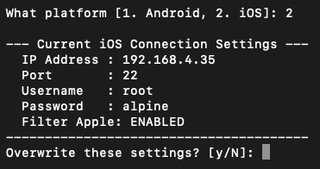
Once all of the requirements are installed, run the tool using python3 mobile_data_extractor.py and you will be prompted for the inputs needed to pull files from the device. For iOS there is a config.ini that can be used to set up the SSH connection for devices where the configuration is unlikely to change frequently (e.g., in a lab environment). When you run the tool and select iOS, you will be given a chance to override the saved configuration just in case you forgot to update the config.ini. If you select yes to change the configuration, the tool will walk through each of the settings.
1.2.1 iOS Considerations
You may have noticed the Filter Apple configuration. The next option in the tool is to enumerate the installed packages on the mobile device. By default, the enumeration will exclude Apple’s packages. This is because there can be upwards of 100 packages installed by Apple on the device, and for most people they are likely reviewing a third-party installed package. Of course, you can change this to disabled if you would like to see everything that is installed.
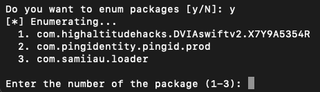
If you choose not to enumerate package names, you will be prompted to enter the package ID for the application you want to extract. The last step is to select your output directory. By default, Mobile Data Extractor will save files to the present working directory.
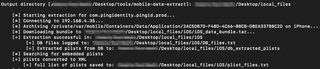
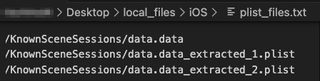
All files will be downloaded to a folder in the output directory with the corresponding platform. Below is a high-level overview of the files and folders in the output directory:
- bundle - contains the application bundle extracted from the device
- data - contains the data directory extracted from the device
- plist_files.txt - all property list (plist) files that were identified
- DB_files.txt - a listing of all SQLite databases that were identified
- db_extracted_plists - contains any plist files that were embedded within SQLite databases
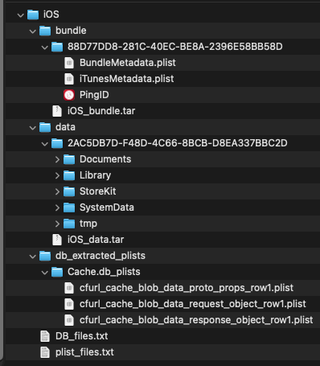
Each of the files under db_extracted_plists and listed in plist_files.txt have been converted to XML, so there will be no need to do that manually. Each plist has also been parsed for embedded plists and extracted into the same directory as the top-level file. Don’t worry, we logged those files and converted them to XML as well.
1.2.2 Android Considerations
For Android devices, the process and output are very similar. The config.ini is not used because ADB utilizes USB functionality to connect to the device and run commands against the operating system. While Android does have a debug over Wi-Fi feature, that feature is seldom used by our team due to some reliability issues.
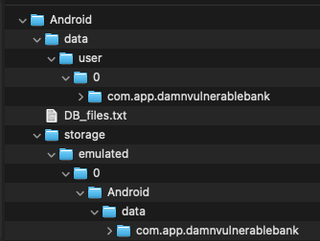
There are two (2) primary folders that are used by an Android application. Below is a quick explanation of each:
- data- contains the files from the application's private sandbox
- storage- contains files that are available to other applications
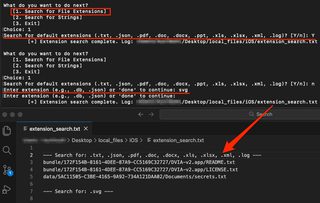
Once the files have been extracted onto your local computer, the tool will prompt for next actions. The first choice is a search for specific file extensions. We use this to look for common file types where secrets or other sensitive information may be stored. There are two (2) options under the file extension search: search for default file extensions or a search for a custom file extension. The default search looks for file extensions that have been commonly seen within client applications and provides a 'quick win' when looking for multiple file types. The custom search allows you to search for any other file extension, such as a proprietary file format. For each search that is performed, an entry is placed in the extension_search.txt. This can be particularly useful if you need to step away from your assessment, as it serves as a reminder of where you left off, or if you happen to lose your terminal session and need to see the results of your previous searches.
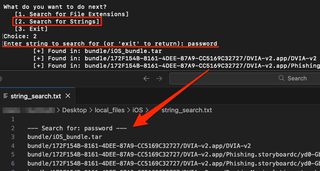
Lastly, there is a string search to look through all of the extracted files for a plaintext value. For example, you may want to search for a user’s password, access tokens, or API keys. Note that the search is case insensitive, so a search for ‘password’ will try to find all instances, including PaSSwoRd. Similar to the other functions of this tool, the string searches will be logged to string_search.txt.
I encourage you to give this tool a try on your next mobile app review—it may take some of the repetition off your plate and let you spend more time on the advance testing techniques.